English
 Deutsch
 Polski
Accessing a Home Network with WireGuard: Setting Up a Raspberry Pi VPN Gateway
Part 6 of 7 in the series Homelab on the Raspberry Pi

Management Summary
A Raspberry Pi can provide a protected route back to selected services on a home network while away. WireGuard creates an encrypted tunnel for that connection. With split tunneling, only the chosen traffic uses the tunnel and ordinary browsing keeps its local internet route. This is useful when remote access to home services is needed without redirecting everything. The article explains the arrangement and why the network still needs rules deciding which destinations each device may reach.
Jump to the interactive example ↓
Contents
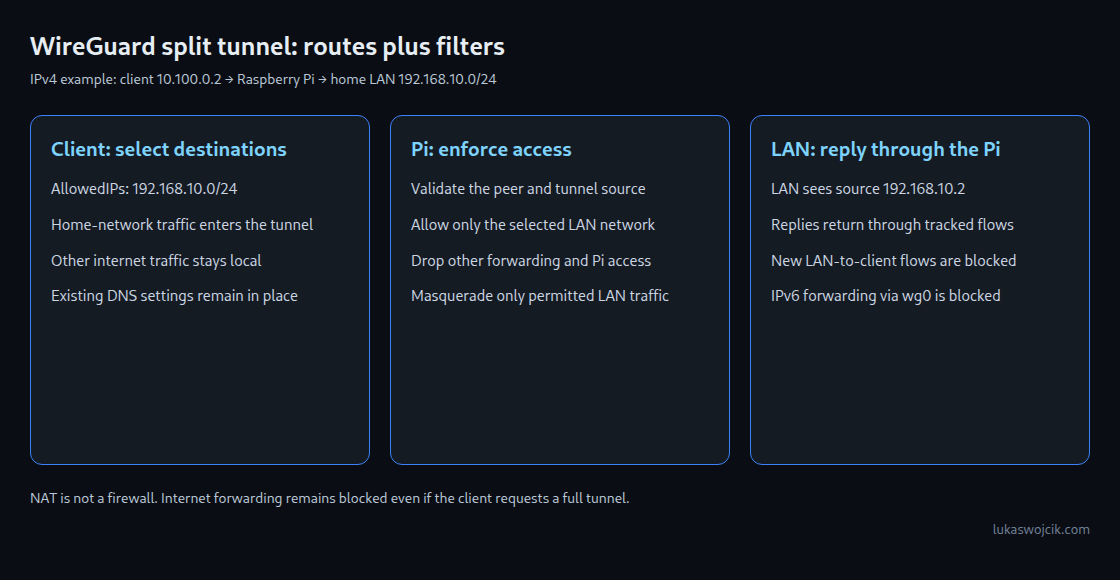
A Raspberry Pi can provide WireGuard access to a home network. Split tunneling sends only selected destination networks through the tunnel; other internet traffic continues over the client’s local connection. This guide limits VPN access to an IPv4 home network and adds actual filtering. Masquerading replaces the client’s source address with the Pi’s address when forwarding packets. This makes replies easier to route, but does not itself restrict access.
WireGuard is integrated into the Linux kernel. This does not imply a fixed throughput: the Pi model, CPU, network, peer and connection all affect performance. Linux IPsec also normally processes data in the kernel, and OpenVPN can use Data Channel Offload. Claims of more than 800 Mbps, negligible CPU usage or zero-latency access require measurements.
1. Example network and access limits
- Home network:
192.168.10.0/24; Pi at a stable192.168.10.2address oneth0. - WireGuard server:
10.100.0.1; one separately identified client at10.100.0.2. - Allowed: client connections to IPv4 home-network destinations and associated replies.
- Blocked: forwarding to other networks, new LAN-to-client connections, and access from
wg0to services running on the Pi itself.
These example networks must not overlap each other or the client’s current local network. eth0 must match the actual LAN interface. For IPv4 access, the router needs UDP forwarding for the selected port 51820 to the Pi, and the existing host firewall must permit that outer UDP traffic. Individual LAN web or storage ports need no public forwarding. With carrier-grade NAT, the internet provider shares a public IPv4 address between several connections. Local port forwarding is then often insufficient; a different reachable access path is needed.
2. Tools and keys
On current Raspberry Pi OS, the tools are installed with sudo apt update and sudo apt install wireguard-tools nftables. The following key generation runs in a root Bash shell. The restrictive umask applies from creation, while set -C prevents overwriting existing key files.
# In a root Bash shell, on the server:
set -euo pipefail
umask 077
install -d -m 700 /etc/wireguard
cd /etc/wireguard
set -C
wg genkey > server_private.key
wg pubkey < server_private.key > server_public.key
The client creates a separate key pair locally. Only public keys are exchanged between devices. Private keys do not belong in shared notes or screenshots. Configuration files also contain private keys and need mode 600: only the file owner receives read and write permissions; group members and other accounts receive none.
3. Forwarding restrictions with filters
The following content belongs in /etc/nftables.d/wireguard.nft. The names wg_guard and wg_nat must be reserved for this configuration. Repeated loading replaces only these owned tables, not the entire ruleset. Syntax is checked before activation with sudo nft -c -f /etc/nftables.d/wireguard.nft.
# Owned tables only; repeated loads replace these rules atomically.
add table inet wg_guard
flush table inet wg_guard
table inet wg_guard {
  chain input {
    type filter hook input priority -10; policy accept;
    iifname "wg0" counter drop
  }
  chain forward {
    type filter hook forward priority -10; policy accept;
    iifname "wg0" ct state invalid counter drop
    iifname "wg0" oifname "eth0" ip saddr 10.100.0.2 ip daddr 192.168.10.0/24 ct state { new, established, related } counter accept
    iifname "eth0" oifname "wg0" ip saddr 192.168.10.0/24 ip daddr 10.100.0.2 ct state { established, related } counter accept
    iifname "wg0" counter drop
    oifname "wg0" counter drop
  }
}
add table ip wg_nat
flush table ip wg_nat
table ip wg_nat {
  chain postrouting {
    type nat hook postrouting priority srcnat; policy accept;
    iifname "wg0" oifname "eth0" ip saddr 10.100.0.2 ip daddr 192.168.10.0/24 counter masquerade
  }
}
The filter permits only the specified tunnel source and home-network destination. NAT masquerades exactly this traffic to the Pi’s LAN address. LAN hosts can therefore reply directly to the Pi without an additional route to the tunnel network. The trade-off is that LAN logs show the Pi’s address rather than the original client address.
The accept policy leaves unrelated traffic unchanged within these additional tables. Other existing base chains can still reject permitted packets, so integration with the current firewall is necessary. UFW, firewalld or Docker must not silently replace or bypass the rules; accelerated flowtables must exclude VPN traffic from a possible filter bypass. On a Pi managed exclusively with nftables, include "/etc/nftables.d/wireguard.nft" can incorporate the file into the maintained persistent ruleset. Later firewall reloads must retain these rules.

4. IPv4 forwarding and server configuration
This example carries IPv4 destinations. IPv6 forwarding is not required and is not enabled indiscriminately. The additional inet filter also drops IPv6 forwarding through wg0 if IPv6 is already enabled elsewhere.
# /etc/sysctl.d/99-wireguard-forwarding.conf
net.ipv4.ip_forward = 1
sudo sysctl -p /etc/sysctl.d/99-wireguard-forwarding.conf applies this file specifically. The example does not impose a global reverse-path filter value. Changing ip_forward can reset IPv4 parameters to router defaults; existing hardening settings need checking afterwards. Strict rp_filter=1 can reject legitimate asymmetric routes or complex policy-routing paths, so the setting must match the topology.
# /etc/wireguard/wg0.conf
[Interface]
Address = 10.100.0.1/24
ListenPort = 51820
PrivateKey = <SERVER_PRIVATE_KEY>
PreUp = /usr/sbin/nft -f /etc/nftables.d/wireguard.nft

[Peer]
PublicKey = <CLIENT_PUBLIC_KEY>
AllowedIPs = 10.100.0.2/32
Actual keys replace the placeholders. PreUp loads the filters before creating the interface; a loading error stops startup. Rules remain after shutdown and are replaced on the next start. This avoids a partially executed sequence of unprotected PostUp NAT commands. UDP 51820 is an explicit choice here; WireGuard can choose a random port when no listening port is configured.
After checking firewall integration and file permissions, sudo systemctl enable --now wg-quick@wg0 starts the service. The hardening covers this VPN path. Operating-system updates, SSH, other host services and LAN permissions still need independent maintenance.
5. Split-tunnel client configuration
[Interface]
PrivateKey = <CLIENT_PRIVATE_KEY>
Address = 10.100.0.2/32

[Peer]
PublicKey = <SERVER_PUBLIC_KEY>
Endpoint = vpn.example.net:51820
AllowedIPs = 192.168.10.0/24
# Optional for a client behind NAT:
PersistentKeepalive = 25
vpn.example.net is a placeholder for the actual reachable endpoint. The client application or wg-quick creates routes from AllowedIPs. WireGuard itself uses these prefixes to select a peer for outgoing destinations and validate source addresses on received packets. Server-side AllowedIPs = 10.100.0.2/32 therefore does not replace destination or port filtering.
Changing the client to 0.0.0.0/0 does not enable internet forwarding through the Pi with these filters. Additional peers need separate keys, unique tunnel addresses and matching firewall rules. PersistentKeepalive = 25 can preserve NAT mappings; the line can be omitted when unnecessary.
6. Checks for access and restrictions
- During active test traffic,
sudo wg show wg0shows handshake and transfer statistics. An old timestamp for an idle peer does not itself prove failure.wg show ... dumpandshowconfcan expose private information and should not enter public diagnostic logs. - On a Linux client,
ip route get 192.168.10.10checks the home-network route. With this client configuration,ip route get 1.1.1.1must still show the local internet path. Other operating systems require equivalent routing diagnostics. - An allowed LAN service must be reachable. Internet destinations through a deliberately full-tunnel test client and Pi services at the tunnel address must remain blocked. Counters in
sudo nft list table inet wg_guardhelp identify matching rules. - An authorized
iperf3test measures actual throughput. CPU load, home upload speed, peer performance and MTU limit the result; a high number alone proves neither link saturation nor absence of fragmentation.
Questions and answers
Does the split tunnel encrypt all internet traffic?
No. Only the permitted home network uses WireGuard here. Other IPv4 and IPv6 internet traffic stays on the local connection. This is the intended split, not a general anonymity service. Tunnel encryption ends at the Pi; protocols such as HTTPS still matter for confidentiality across the LAN.
Why is there no DNS setting?
The client’s existing name resolution is deliberately retained. Internal names may require split DNS or targeted resolver configuration. Switching all DNS to a home-network resolver can make public name resolution depend on the tunnel too. Actual behavior depends on the operating system, resolver, cache and other DNS settings.
Does another UDP port make the gateway invisible?
A different port number does not replace access control. WireGuard ignores many invalid packets, but does not guarantee complete invisibility. The protocol includes cookie replies under load, for example. Keys, firewall rules and system maintenance remain central.
Learn by trying
Where does this packet go?
Choose destination, routing mode and AllowedIPs. The map shows the selected path – or why sending fails.
| Prefix | Interface |
|---|
IPv4 model with fixed routes and one peer. The longest matching prefix wins first; the peer must then cover the destination. Modelled routes remain when the tunnel is unavailable. No DNS, firewall, NAT or multi-table simulation; no real packets.
This module runs in your browser and does not send or store your input.
Learn by trying
One minute: can you spot the mistake?
Default route through wg0, but 192.168.10.0/25 through eth0. Which path wins for 192.168.10.42 in this table?
/25 is more specific than /0. In this single routing table, eth0 therefore wins. AllowedIPs then selects the peer for packets already handed to WireGuard; it does not override this eth0 route.
What happens if …?
Simplified learning model
What happens if …?
Take a component offline in a sample network. Which services keep working?
Camera feed on the local network
A local camera is accessed by IP. The switch and Wi-Fi connect it to your device. This model does not need internet, DNS or the Pi for that.
Home Assistant by local IP
The interface runs on the Pi. Your device reaches it over the local network; no DNS name is needed here.
Zigbee automation on the Pi
A Zigbee coordinator connected directly to the Pi controls a local device. This fixed rule needs neither Wi-Fi nor internet in this example.
Cloud access to Home Assistant
Access uses a cloud hostname and a tunnel from the Pi. It needs all four components in this example.
Open a new external website
A new, uncached hostname needs DNS and a route to the internet. The local Pi does not host this external site.
Existing internet connection by IP
An established connection does not need a fresh name lookup. It survives the DNS outage while the network and internet remain available.
Simplified learning model
A sample network, not a live view of my setup. Devices stay powered. Pi = Home Assistant with USB Zigbee; DNS is an external resolver, with no cache or fallback. “Switch / Wi-Fi” represents all local access. Results describe the outage itself, not automatic recovery.
DNS · RFC 1034 ↗These examples run only in your browser. No real systems are disrupted.
PNG with settings, result and article link. Created locally only when you click.
Homelab on the Raspberry Pi
- Starting a Raspberry Pi 4 or 5 from an SSD: Setup and Recovery
- Keeping a Raspberry Pi Powered During an Outage: Five UPS Options Compared
- Automatically Testing and Updating Docker Applications on a Raspberry Pi
- Docker Compose Home Server: Traefik, TLS and Update Monitoring
- Jellyfin on Raspberry Pi 5: Playing Videos While Avoiding Costly Conversion
- Accessing a Home Network with WireGuard: Setting Up a Raspberry Pi VPN Gateway
- Raspberry Pi Monitoring with Prometheus and Grafana
Related articles