English
 Deutsch
 Polski
Tutorial: Extracting SVG Graphics from Websites: The Console Method and Alternatives

Contents
An SVG can be embedded directly in HTML or loaded as a separate file. Copying an inline SVG often omits CSS rules from the surrounding page, changing colors or outlines. This method copies selected computed styles for simple, static SVG graphics.
1. Find the appropriate source
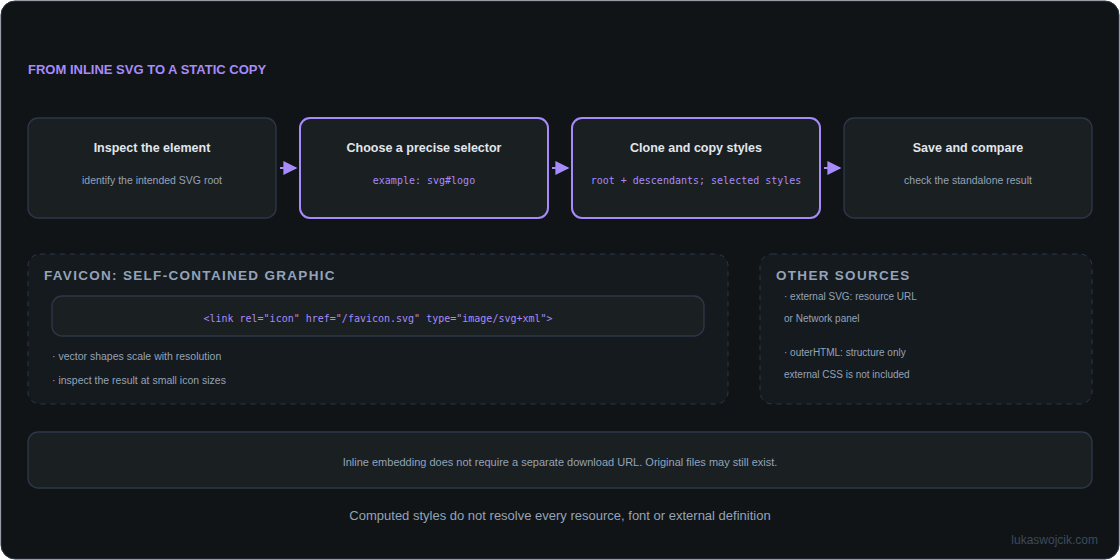
Developer tools commonly open with F12 or Ctrl+Shift+I. Inspection in the Elements panel distinguishes an actual <svg> from an <img> or CSS background. An external SVG can be saved from its resource URL; searching for “svg” in the Network panel helps. The Img filter does not cover every loading method.
For inline SVG, Copy outerHTML captures the structure. CSS rules outside the copied node are not included. Inline SVG may originally have come from a file; the embedded representation simply need not have a separate download URL.
2. Export a static copy
The console example selects the first inline SVG. The selector should first be narrowed to the intended graphic, for example svg#logo. Chrome’s $0 refers to the most recently inspected element; that selection must be the SVG root. The code is intended for trusted, simple graphics and is not an SVG sanitizer.
(() => {
  const source = document.querySelector("svg");
  if (!source) throw new Error("No inline SVG found");
  const copy = source.cloneNode(true);
  const originals = [source, ...source.querySelectorAll("*")];
  const copies = [copy, ...copy.querySelectorAll("*")];
  const properties = [
    "fill", "fill-opacity", "fill-rule", "stroke", "stroke-width",
    "stroke-opacity", "stroke-linecap", "stroke-linejoin",
    "stroke-dasharray", "stroke-dashoffset", "color", "opacity",
    "visibility", "display", "font-family", "font-size", "font-weight",
    "font-style", "text-anchor", "letter-spacing", "stop-color", "stop-opacity"
  ];
  originals.forEach((element, index) => {
    const styles = getComputedStyle(element);
    for (const property of properties) {
      copies[index].style.setProperty(property, styles.getPropertyValue(property));
    }
  });
  const rootStyle = getComputedStyle(source);
  copy.setAttribute("xmlns", "http://www.w3.org/2000/svg");
  copy.setAttribute("width", rootStyle.width);
  copy.setAttribute("height", rootStyle.height);
  copy.style.width = rootStyle.width;
  copy.style.height = rootStyle.height;
  const xml = new XMLSerializer().serializeToString(copy);
  const url = URL.createObjectURL(new Blob([xml], { type: "image/svg+xml" }));
  const link = document.createElement("a");
  link.href = url;
  link.download = "exported.svg";
  document.body.append(link);
  link.click();
  link.remove();
  setTimeout(() => URL.revokeObjectURL(url), 1000);
})();
The copy includes the root and all descendants. Colors, opacity, stroke width and selected text styles are fixed, and the current CSS dimensions are retained. The original graphic remains unchanged. The block can run again without colliding with earlier console variable declarations. The temporary object URL is released afterwards.
3. Check the result and its limits
The saved file should be opened separately and compared with the original. The property list does not copy every CSS feature. Animations, CSS transforms, complex filters, external fonts, raster images and references to definitions outside the SVG can require further work. A <use> reference only works if its target is included or accessible in the intended context.
A main-document query does not cross iframe documents or shadow roots. The relevant document or component source needs separate inspection. A cloned SVG can also contain existing scripts, event attributes and external references; these need a separate review before embedding.
4. Use the file as a favicon
A self-contained SVG can be declared as an icon in the HTML head. An additional ICO file provides a fallback. Vector artwork still needs a recognizable design at small sizes.
<link rel="icon" href="/favicon.ico" sizes="any">
<link rel="icon" href="/favicon.svg" type="image/svg+xml">
Questions and answers
Why can colors still be missing?
Definitions or resources may lie outside the copy, such as a gradient defined in another SVG. Computed styles do not automatically resolve every dependency. CSS properties outside the copied list can also affect rendering.
How can a favicon support dark mode?
An internal style block can change colors through prefers-color-scheme. Fixed inline colors need removal or suitable reworking so the relevant rules can apply. The result needs testing in the intended browser.
Can an extension capture every graphic automatically?
No. Access to frames, components and external resources depends on permissions and implementation. Developer tools are often enough for a single graphic; an extension is not required.
Related articles