English
 Deutsch
 Polski
Zero-Latency Local Media Server: Jellyfin on Raspberry Pi 5 with Hardware Acceleration
Part 5 of 5 in the series Homelab on the Raspberry Pi

Contents
Architectural Overview: Media Transcoding on the Raspberry Pi 5
Hosting a self-managed video streaming server on a Raspberry Pi traditionally faced severe performance bottlenecks when client devices required real-time transcoding. Unsupported codecs, incompatible audio streams, or bandwidth restrictions force the media server to decode and re-encode video frames on the fly. On general-purpose ARM processor cores, software-based transcoding of high-bitrate HEVC (H.265) or 4K media rapidly exhausts CPU resources, leading to thermal throttling and playback stuttering.
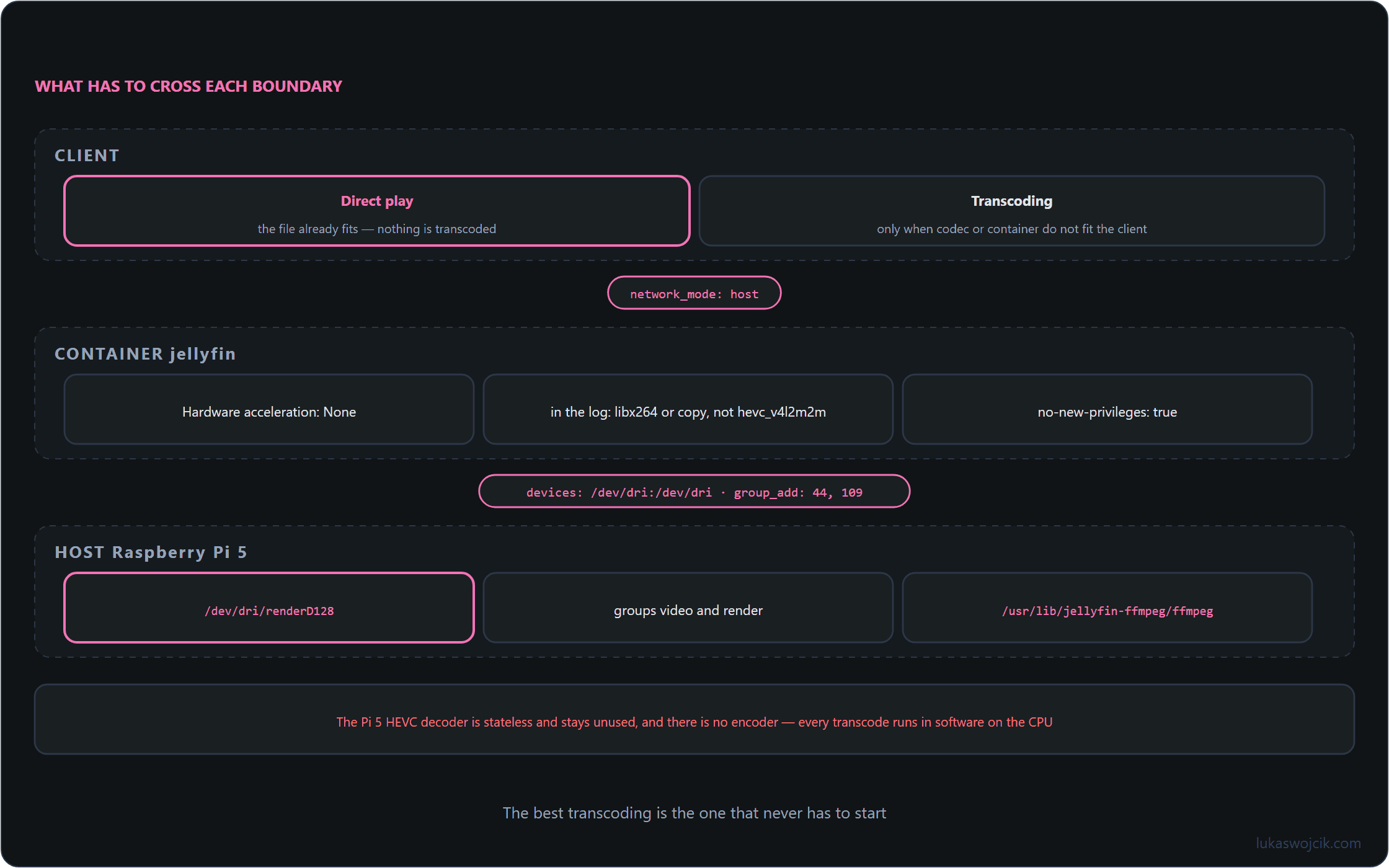
The Raspberry Pi 5 (powered by the Broadcom BCM2712 SoC) decodes only HEVC in hardware, and that decoder is stateless: it is driven through the V4L2 request API, not through stateful V4L2-M2M decoders such as hevc_v4l2m2m. Jellyfin does not use it: its “Video4Linux2” option only employs V4L2 encoders such as h264_v4l2m2m, and the Pi 5 has no encoder; the project has also deprecated V4L2 support for the Raspberry Pi. Run as a container on the Pi 5, Jellyfin therefore decodes and encodes in software on the four ARM Cortex-A76 cores; low power consumption applies to Direct Play, not to transcoding.
Step-by-Step Implementation Guide
Step 1: Host Operating System Preparation and DRM Device Verification
A 64-bit Raspberry Pi OS Lite installation is required to ensure compatibility with 64-bit FFmpeg hardware libraries; current images have been based on Debian 13 (Trixie) since October 2025, with Debian 12 (Bookworm) as the minimum version. Before initializing container runtimes, the presence of Direct Rendering Manager (DRM) devices must be verified via terminal:
ls -l /dev/driA healthy system output displays the card and render nodes (card0, card1, renderD128). To allow Docker containers access to these graphics nodes, the executing service group permissions must be confirmed:
sudo usermod -aG video,render "$USER"Step 2: Persistent NVMe Storage Architecture and Directory Layout
For zero-latency library scanning and smooth high-bitrate streaming, media archives should reside on an NVMe SSD connected via the PCIe 2.0/3.0 interface or a UASP-compatible USB 3.0 storage array. A clean directory hierarchy is created under /opt/containers/jellyfin/:
mkdir -p /opt/containers/jellyfin/{config,cache}
mkdir -p /mnt/media/{movies,series}
chmod -R 755 /mnt/media
Step 3: Designing the Declarative Docker Compose Stack
The container orchestration is defined inside /opt/containers/jellyfin/docker-compose.yml. The host’s /dev/dri directory, which hardware-accelerated transcoding would need, is mapped into the container, on the Pi 5 only as a precaution (see Step 4), and the container process must run under a fixed user ID set via user while additionally joining the host’s render and video groups by their numerical GIDs via group_add:
services:
  jellyfin:
    image: jellyfin/jellyfin:latest
    container_name: jellyfin
    restart: unless-stopped
    user: "1000:1000"
    group_add:
      - "44"  # Replace with the host numerical GID of 'video'
      - "109" # Replace with the host numerical GID of 'render'
    network_mode: "host"
    environment:
      - JELLYFIN_PublishedServerUrl=http://jellyfin.lukaswojcik.com
    volumes:
      - "/opt/containers/jellyfin/config:/config"
      - "/opt/containers/jellyfin/cache:/cache"
      - "/mnt/media:/media:ro"
    devices:
      - "/dev/dri:/dev/dri"
    security_opt:
      - no-new-privileges:true
Technical Note: Using network_mode: "host" maximizes network throughput and enables automatic DLNA/UPnP local network discovery without complex bridge port-forwarding rules.
Step 4: Transcoding Settings in the Jellyfin Dashboard
After launching the stack via docker compose up -d, transcoding is set up within the Jellyfin administrative interface:
- Access the web interface at
http://<Raspberry-Pi-IP>:8096and navigate to Dashboard → Playback → Transcoding. - In the Hardware acceleration dropdown menu, the setting stays at None. Video4Linux2 (V4L2) does nothing on the Pi 5: Jellyfin only uses V4L2 encoders through it, the BCM2712 has no video encoder at all, and the Jellyfin documentation lists V4L2 for the Raspberry Pi as deprecated. An OpenMAX/OMX entry no longer exists: Jellyfin has removed it, and Raspberry Pi OS dropped the OMX interface with Bullseye.
- There are therefore no hardware decoding boxes to check. Jellyfin does not address the SoC’s only hardware decoder, the one for HEVC, and the BCM2712 no longer contains the H.264, MPEG-2 and MPEG-4 decoder blocks of the Raspberry Pi 4; all formats are decoded in software on the Cortex-A76 cores.
- Set the FFmpeg path to
/usr/lib/jellyfin-ffmpeg/ffmpegand save the configuration.
Step 5: Quality Assurance and Real-Time Transcoding Verification
How heavily transcoding loads the CPU, and whether Jellyfin re-encodes at all, is shown by a check during an active video stream:
- Initiate a Transcoded Stream: Play an HEVC (H.265) 10-bit video file on a web browser client that lacks native H.265 support, forcing Jellyfin to transcode to H.264. Both decoding and encoding run in software here: Jellyfin does not use the Pi 5’s HEVC decoder, and the BCM2712 contains no video encoder at all, so the H.264 encoding is performed by libx264 on the CPU.
- Inspect FFmpeg Process Architecture: In an SSH terminal on the Raspberry Pi, run
htoportop. Because decoding and encoding stay in software, heavy load across all four cores is expected in this scenario and does not indicate a broken setup. Low CPU figures only appear when no re-encoding takes place, that is during Direct Play. Whether the HEVC decoder itself works is only shown by a decode-only test outside Jellyfin with the FFmpeg from Raspberry Pi OS on the host, such asffmpeg -hwaccel drm -i file.mkv -f null -. - Audit Transcoder Logs: Check the generated logs under
/opt/containers/jellyfin/config/log/ffmpeg-transcode-*.txt. A decoder such ashevc_v4l2m2mdoes not appear there, because Jellyfin sets no decoder for V4L2. The telling entry is the one after-codec:v:0:libx264means the picture is re-encoded,copymeans it is only repackaged.
Summary and Measurable Added Value
What is achieved: Deployment of a containerized, self-hosted Jellyfin media server on a Raspberry Pi 5 that serves video files via Direct Play and transcodes in software when needed.
Resulting added value:
- Stutter-Free Local Media Streaming: High-bitrate archives (including HEVC/H.265 files) play instantaneously via Direct Play on client devices that support their codec, without buffering or playback delays.
- Low Energy Consumption: During Direct Play the server delivers the file without decoding it, so power consumption stays low, allowing 24/7 silent operation; transcoding with libx264, by contrast, loads all four cores and calls for active cooling.
- Complete Data Privacy and Cost Independence: Local video collections remain entirely on-premise without cloud dependencies, external telemetry, or subscription fees.
Questions and answers
Why does Jellyfin transcode even though the client device can play HEVC?
Because the server checks more than the video codec. Re-encoding the picture also becomes necessary when another part of the file does not suit the client, and on the Raspberry Pi 5 every such encode runs in software. Common triggers are:
- Subtitles in image formats such as PGS that the client cannot render itself. They are burned into the picture, and that requires the video to be re-encoded. Text subtitles such as SRT, by contrast, can usually be delivered separately.
- A bitrate limit in the player that is lower than the bitrate of the file. The server then transcodes down to a lower bitrate even though the codec fits.
- An audio track the client does not support. Here converting only the audio is often enough, which puts far less load on the CPU than re-encoding the picture.
The logs under /config/log that the article uses for verification show which case applies: if the video is listed as copy instead of libx264, the file is only being repackaged or its audio converted. Removing the causes, for example with text subtitles or a higher bitrate limit in the player, leads to Direct Play and thus to the low CPU figures the article gives for that case.
Why does group_add list numbers instead of the group names video and render?
The kernel checks access to /dev/dri by numeric group ID, and the names video and render are tied to those numbers only on the host system; in the container image they may be missing or carry different numbers. The right values come from getent group video render on the host. The usermod from Step 1, on the other hand, only affects the user on the host, not the process inside the container.
Does the Raspberry Pi 5 need active cooling for this setup?
As soon as it transcodes, yes. Because the BCM2712 has no video encoder, libx264 keeps all four cores busy during every transcode, for the entire length of a movie. Without active cooling, the SoC reaches the temperature at which the firmware lowers the clock speed, and exactly this thermal throttling causes the stuttering the article describes for software transcoding.
Whether throttling has already occurred is shown by vcgencmd get_throttled on the host: a value of 0x0 means that neither undervoltage nor throttling has occurred since boot. Setups that mostly rely on Direct Play usually get by with passive cooling, because nothing then has to be decoded or encoded.
Homelab on the Raspberry Pi
- Raspberry Pi 4 and 5: Booting From an SSD by Changing the Bootloader
- Uninterruptible Power Supply (UPS) for Raspberry Pi 4 and 5: Top 5 Solutions for High-Load Setups
- Local CI/CD for Raspberry Pi: Automating Docker Compose Deployments
- Autonomous Docker-Compose Home Server with Traefik, SSL, and Watchtower
- Zero-Latency Local Media Server: Jellyfin on Raspberry Pi 5 with Hardware Acceleration
Related articles