English
readme.txt, header and SVN: how WordPress.org reads a plugin

Contents
- The plugin header in the main file
- The readme.txt: header fields, short description, sections
- Which value wins when header and readme disagree
- SVN layout: trunk, tags and assets
- Complete command sequence for a first release and an update
- Typical errors and the readme validator
- Limits and open points
- Questions and answers
- Sources
A plugin in the WordPress.org directory is described by two plain text sources that answer different questions. The comment header at the top of the main PHP file is read by WordPress itself and by the directory; the readme.txt is read only by the directory. Which of the two counts is not obvious at first sight: the download button shows the version from the header, the one-line description under the plugin name comes from the readme, and for “Requires at least” both files may carry a value. On top of that, the SVN repository decides which copy of the readme is read at all.
This article goes through both files with complete examples, uses the directory’s import code to settle which field wins in a conflict, explains the trunk/, tags/ and assets/ layout with a full command sequence, and lists the errors reported by the readme validator and the importer. Review and Plugin Check are covered in separate articles in this series.
The plugin header in the main file
WordPress recognises a plugin by a comment block that contains at least the line Plugin Name:. All other fields are optional, but several of them are evaluated by the directory. When a release is imported, the directory scans the PHP files in the root of the released folder and stops at the first file whose header contains a plugin name. That is why the plugin handbook insists that the main file sits directly in trunk/: a path such as trunk/my-plugin/my-plugin.php breaks downloads. Subfolders are fine for included files.
The following main file is complete and can be activated as it is. It belongs to a small sample plugin, “LW Reading Time”, that is used throughout the article:
<?php
/**
 * Plugin Name:       LW Reading Time
 * Plugin URI:        https://lukaswojcik.com/plugins/lw-reading-time/
 * Description:       Shows the estimated reading time above single posts.
 * Version:           1.2.0
 * Requires at least: 6.5
 * Requires PHP:      7.4
 * Author:            Lukas Wojcik
 * Author URI:        https://lukaswojcik.com/
 * License:           GPLv2 or later
 * License URI:       https://www.gnu.org/licenses/gpl-2.0.html
 * Text Domain:       lw-reading-time
 *
 * @package LW_Reading_Time
 */

if ( ! defined( 'ABSPATH' ) ) {
	exit;
}

/**
 * Prepends the estimated reading time to the content of single posts.
 *
 * @param string $content Post content.
 * @return string Filtered content.
 */
function lw_reading_time_prepend( $content ) {
	if ( ! is_singular( 'post' ) || ! in_the_loop() || ! is_main_query() ) {
		return $content;
	}

	$words   = str_word_count( wp_strip_all_tags( $content ) );
	$minutes = max( 1, (int) ceil( $words / 200 ) );

	$label = sprintf(
		/* translators: %d: number of minutes. */
		_n( '%d minute read', '%d minutes read', $minutes, 'lw-reading-time' ),
		$minutes
	);

	return '<p class="lw-reading-time">' . esc_html( $label ) . '</p>' . $content;
}
add_filter( 'the_content', 'lw_reading_time_prepend' );
A few fields deserve a closer look:
- Version is compared with PHP’s
version_compare(), so1.02counts as greater than1.1. The importer warns about anything other than digits, dots and an optional-rc,-betaor-alphasuffix, and it refuses version strings that would be unsafe as a folder path. - Requires at least and Requires PHP are the version requirements WordPress itself checks on activation; since WordPress 6.5 it also checks Requires Plugins. Since WordPress 5.8 the readme is no longer parsed for requirements;
validate_plugin_requirements()in core reads the header throughget_plugin_data()and nothing else. - Description appears in the admin plugin list (handbook: fewer than 140 characters); in the directory it is only a fallback.
- Requires Plugins (since WordPress 6.5) takes a comma-separated list of directory slugs such as
woocommerce, not paths likemy-plugin/my-plugin.php. Plugins hosted on WordPress.org may only depend on plugins that are also hosted there. The importer aborts the release when a slug cannot be resolved to a published plugin. - Update URI should not be used for a directory plugin. The importer accepts it only when it points to
wordpress.org/plugins/<slug>of the same plugin and aborts the import otherwise. - Text Domain matches the slug; translations are the topic of a separate article in this series.
The readme.txt: header fields, short description, sections
The readme uses a customised Markdown dialect with == headings. A complete readme for the sample plugin looks like this:
=== LW Reading Time ===
Contributors: lukaswojcik
Tags: reading time, posts, content
Requires at least: 6.5
Tested up to: 7.1
Requires PHP: 7.4
Stable tag: 1.2.0
License: GPLv2 or later
License URI: https://www.gnu.org/licenses/gpl-2.0.html

Shows the estimated reading time above single posts, based on the word count of the post content.

== Description ==

LW Reading Time counts the words of a post and shows the estimated reading time above the content of single posts.

* No settings page, no database tables.
* The output is a single paragraph with the class `lw-reading-time`.
* Translations are managed on translate.wordpress.org.

== Installation ==

1. Install the plugin via Plugins > Add New, or upload the folder `lw-reading-time` to `/wp-content/plugins/`.
2. Activate the plugin.
3. Open any single post; the reading time appears above the content.

== Frequently Asked Questions ==

= How is the reading time calculated? =

The word count of the post content is divided by 200 and rounded up to full minutes.

= Does the plugin change pages? =

No. Only single posts of the post type `post` are changed.

== Screenshots ==

1. Reading time above a single post.
2. The same post with the Polish translation active.

== Changelog ==

= 1.2.0 =
* Plural forms for the reading time label.
* WordPress 6.5 or later is required.

= 1.1.0 =
* Output limited to the main query.

== Upgrade Notice ==

= 1.2.0 =
Adds plural forms. WordPress 6.5 or later is now required.
Header fields
- Contributors must list WordPress.org usernames. The parser strips a leading
@, looks each entry up as a login name and then as a profile slug, and drops anything it cannot find with a warning. The handbook describes the list as case sensitive. - Tags accepts at most five terms; the rest is ignored with a warning. The tags
pluginandwordpressare removed outright, and the validator adds a note for tags used by fewer than five plugins. The handbook also rules out competitors’ plugin names as tags. - Tested up to should contain numbers only, for example
7.1. The directory ignores minor versions and adds the current one itself, which is why the Plugin Check page currently shows “Tested up to 7.0.6”. A value higher than the current stable branch plus 0.1 is discarded: with WordPress 7.1.2 as the current release on 29.09.2026,7.2is accepted and7.3is not. - Requires PHP must look like
x.yorx.y.z; anything else is ignored with a warning. - License is checked against keyword lists. Terms such as “NonCommercial” or “proprietary” produce an error in the validator; an unknown licence only produces a note.
- Stable tag is the field that controls the whole SVN mechanism and gets its own section below.
Short description and sections
The text after the header fields up to the first section heading is the short description, shown directly under the plugin name; the parser joins several lines or paragraphs into one. The parser allows 150 characters, counted after Markdown and HTML have been removed. Longer text is cut at a full stop within the last fifth of the limit, otherwise with an ellipsis, and the validator warns. If the line is missing, the first line of the description takes its place.
The expected sections are Description, Installation, Frequently Asked Questions, Screenshots, Changelog and Upgrade Notice. Unknown sections are not lost; they are appended to the description with their title as a subheading. Each section is limited to 2,500 words, FAQ and changelog to 5,000 words; longer text is truncated. FAQ entries written as = Question = become a definition list on the plugin page, and the numbered lines under Screenshots become the captions of screenshot-1, screenshot-2 and so on. The handbook adds that readme files larger than 10 kB may cause errors and recommends moving older changelog entries into a separate changelog.txt.
The Upgrade Notice is not a tab on the plugin page. The importer stores it separately, the directory API delivers it, and WordPress shows it as plain text on the Dashboard → Updates screen next to the pending update. The official sample readme recommends at most 300 characters; the parser does not enforce that.
Which value wins when header and readme disagree
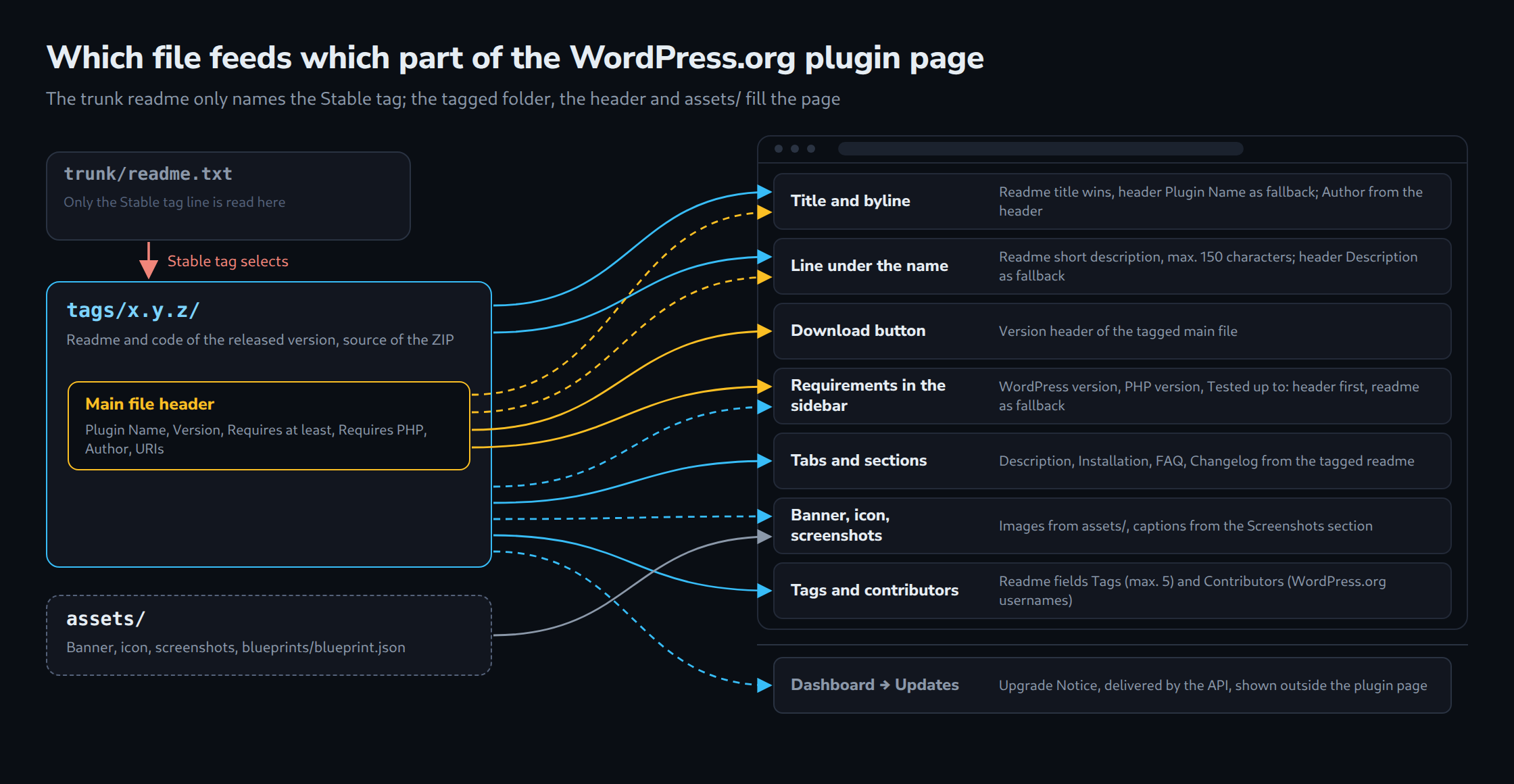
The handbook only says in general terms that the version comes from the main file and everything else from the readme. The import code of the directory is more precise. The following table summarises what it does as of 29.09.2026:
| Shown on the plugin page | Value that wins | Fallback |
|---|---|---|
| Plugin name (page title) | Readme title line === … ===, unless it equals the slug |
Header Plugin Name |
| Line under the name | Readme short description | Header Description |
| Version, download button | Header Version |
none |
| “WordPress version … or higher” | Header Requires at least, if well formed |
Readme |
| “PHP version … or higher” | Header Requires PHP, if well formed |
Readme |
| “Tested up to” | Header Tested up to, if present and well formed |
Readme |
| Tags, contributors, donate link | Readme | none |
| Plugin and author homepage | Header Plugin URI, Author URI |
none |
| Released code | Stable tag in trunk/readme.txt |
trunk/ |
“Well formed” means at least three characters consisting of digits and dots. The “Tested up to” row is easy to miss: the importer registers Tested up to as an additional header for the main file, so a value there overrides the readme, and Plugin Check reports a mismatch between the two. Since core evaluates requirements from the header only, the requirement values are best kept identical in both files.
SVN layout: trunk, tags and assets
After approval every plugin gets a repository at https://plugins.svn.wordpress.org/<slug> with three folders: trunk/ for the current code, tags/ for releases and assets/ for images and the blueprint. branches/ is no longer created. The handbook treats SVN as a release repository: every commit rebuilds the ZIP files of all versions, one reason why changes can take up to six hours to show.
How the Stable tag selects the code
The import starts with trunk/readme.txt and reads only one line from it, Stable tag. With Stable tag: 1.2.0, the directory looks for tags/1.2.0/. If that folder exists and contains files, everything else comes from there: the readme shown on the page, the plugin header and the ZIP that users download. Edits to the description in trunk/readme.txt have no effect on the page as long as the tag exists. The readme inside the tag must also carry the correct Stable tag; otherwise, according to the handbook, the plugin may stop updating.
The folder name selects the code, but it does not set the version. The version on the download button comes from the Version header in the tagged main file. If tags/1.4/ contains Version: 1.3, the page shows 1.3, and the importer reports that header and tag do not match. Quotes around the Stable tag value and a tags/ prefix are removed by the parser.
Assets: names, sizes and the blueprint
Everything in assets/ applies to all versions and is not part of the ZIP. Images placed in trunk/assets/ or tags/1.0/assets/ are not used. The file names are fixed:
| Purpose | File name | Maximum size |
|---|---|---|
| Banner | banner-772x250.png or .jpg |
4 MB |
| Banner, high DPI | banner-1544x500.png or .jpg |
4 MB |
| Icon | icon-128x128.png, .jpg or .gif |
1 MB |
| Icon, high DPI | icon-256x256.png, .jpg or .gif |
1 MB |
| Icon, vector | icon.svg plus a PNG fallback |
1 MB |
| Screenshots | screenshot-1.png, screenshot-2.jpg … |
10 MB |
| Playground preview | blueprints/blueprint.json |
100 kB (importer limit) |
The pixel dimensions must match the names, and the high-DPI banner works only in addition to the normal one. File names must be lowercase. Banners and screenshots can be localised with suffixes such as -de, banners also with -rtl. Because of CDN caching, new images may take up to six hours to appear.
For the blueprint the importer accepts only valid JSON and appends an installPlugin step with activation if the file does not install the plugin itself. The Preview button is visible to committers only until a committer switches the preview to public in the plugin’s Advanced view. Writing the blueprint is covered in the article on Playground and Blueprints in this series.
Complete command sequence for a first release and an update
The SVN username is the WordPress.org username, not the e-mail address, and it is case sensitive. A separate SVN password can be set in the WordPress.org profile. The following sequence covers the first release of version 1.2.0 including assets:
# First release: check out the repository created after approval.
svn co https://plugins.svn.wordpress.org/lw-reading-time lw-reading-time-svn
cd lw-reading-time-svn

# Main plugin file and readme.txt go directly into trunk/, not into a subfolder.
cp ../lw-reading-time/lw-reading-time.php ../lw-reading-time/readme.txt trunk/
svn add trunk/*

# Banner, icon, screenshots and blueprint go into the top-level assets/ folder.
cp ../lw-reading-time-assets/banner-772x250.png ../lw-reading-time-assets/banner-1544x500.png assets/
cp ../lw-reading-time-assets/icon-128x128.png ../lw-reading-time-assets/icon-256x256.png assets/
cp ../lw-reading-time-assets/screenshot-1.png ../lw-reading-time-assets/screenshot-2.png assets/
mkdir assets/blueprints
cp ../lw-reading-time-assets/blueprint.json assets/blueprints/
svn add assets/*

# Serve the images as images instead of application/octet-stream.
svn propset svn:mime-type image/png assets/*.png

# The username is case sensitive.
svn ci -m "Add LW Reading Time 1.2.0 to trunk, add assets" --username WPORG_USERNAME

# Tag the release from trunk and commit the tag.
svn cp trunk tags/1.2.0
svn ci -m "Tag version 1.2.0"
Between the two commits the Stable tag points to a tag that does not exist yet, so the directory briefly falls back to trunk/; the handbook calls this harmless. The svn propset line is the documented fix for images that browsers download instead of displaying; for JPEG files the type is image/jpeg.
For every later release the handbook recommends editing trunk/ first, including the new Stable tag, then copying trunk to the new tag with svn cp and committing both in one step:
# Next release: bring the working copy up to date.
cd lw-reading-time-svn
svn up

# Version header and Stable tag both say 1.3.0 in the copied files.
cp ../lw-reading-time/lw-reading-time.php ../lw-reading-time/readme.txt trunk/
svn add --force trunk
svn stat
svn diff

# Copy trunk to the new tag and commit trunk and tag together.
svn cp trunk tags/1.3.0
svn ci -m "Release 1.3.0"
Because svn cp works inside the working copy, SVN keeps the history, and the tag receives exactly the files of trunk/, including the readme with the correct Stable tag. Everything committed ends up on user sites, .gitignore included; ZIP archives do not belong in SVN at all.
Typical errors and the readme validator
Most problems after a release trace back to a handful of causes:
- Stable tag points to a tag that does not exist. The importer falls back to
trunk/with a warning, and users receive whatever is in trunk, possibly unfinished code. Stable tag: trunk. It still works, but the handbook calls it unsupported and prohibits it for new plugins. The validator flags every Stable tag containing “trunk”, and with release confirmation enabled the importer rejects a release from trunk.- Tag created, header not updated. The page keeps showing the old version, and the importer reports a mismatch between Version header and tag.
- Readme edited only in trunk. As long as the Stable tag points to an existing tag, the change does not appear.
- Wrong asset names. Custom banner sizes, uppercase file names or assets inside
trunk/are ignored. - Dependencies outside the directory. A slug in
Requires Pluginsthat is not a published directory plugin stops the import.
The readme validator at wordpress.org/plugins/developers/readme-validator/ runs the same parser as the directory. It accepts pasted text or a URL on plugins.svn.wordpress.org, themes.svn.wordpress.org or raw.githubusercontent.com up to 512 kB. Errors include a missing or placeholder name such as the literal === Plugin Name ===, a trademark in the name and an incompatible licence. Warnings cover an invalid Stable tag, a missing or ignored “Tested up to”, ignored contributors, surplus tags and truncated text. Notes list missing optional parts such as FAQ, changelog or screenshots. The validator sees only the readme; tag existence, version match and dependencies are checked during the import.
Limits and open points
The statements about precedence rely on the directory’s source code in the GitHub mirror of the meta repository as of 29.09.2026. That code changes often; the import class alone received several commits in September 2026. Behaviour can shift without the handbook being updated.
Some points remain open. The handbook statement that readmes are no longer parsed for requirements refers to WordPress core; the directory still uses readme values as a fallback. Which Upgrade Notice entry the update API selects for a given update was not traced. How strictly the contributor lookup treats upper and lower case was not tested.
MIME type commands are documented for PNG and JPEG only, not for SVG icons, and the 10 kB readme size is a vague warning rather than a hard limit.
The sample plugin has not been submitted. On a test installation with WordPress 7.1.2 it activates without notices, and Plugin Check 2.1.0 reports no errors for it. Both SVN command sequences ran without errors against a local repository. The validator behaviour described here comes from its source code.
Questions and answers
Does the plugin page take its description from trunk/readme.txt or from the tag?
From the tag. In trunk/readme.txt only the Stable tag line is read. If the named folder under tags/ exists and contains files, the readme, the plugin header and the ZIP all come from there. Changes that exist only in trunk do not appear as long as the tag exists.
Why does the plugin page show a different “Tested up to” value than the readme?
There are two common reasons:
- The directory ignores minor versions and adds the current one itself, so
7.0becomes something like7.0.6. - A
Tested up toline in the main file header overrides the readme when it is well formed.
A value too far above the current stable branch is discarded by the parser altogether.
Can a directory plugin depend on a plugin that is sold outside WordPress.org?
No. Plugins hosted on WordPress.org may only list plugins in Requires Plugins that are hosted there as well, written as slugs, not as paths. If a slug cannot be resolved to a published plugin, the importer aborts the release.
Sources
- Plugin Handbook: How your readme.txt works (retrieved 29.09.2026)
- Plugin Handbook: Header Requirements (retrieved 29.09.2026)
- Plugin Handbook: Using Subversion (retrieved 29.09.2026)
- Plugin Handbook: How Your Plugin Assets Work (retrieved 29.09.2026)
- Plugin Handbook: Previews and Blueprints (retrieved 29.09.2026)
- WordPress.org: Readme Validator (retrieved 29.09.2026)
- WordPress.org: sample readme.txt (retrieved 29.09.2026)
- GitHub WordPress/wordpress.org: readme parser (class-parser.php) (retrieved 29.09.2026)
- GitHub WordPress/wordpress.org: readme validator (class-validator.php) (retrieved 29.09.2026)
- GitHub WordPress/wordpress.org: plugin importer (class-import.php) (retrieved 29.09.2026)
- GitHub WordPress/wordpress-develop: validate_plugin_requirements() in plugin.php (retrieved 29.09.2026)
- GitHub WordPress/wordpress-develop: upgrade notice in update-core.php (retrieved 29.09.2026)
- Make WordPress Core: Introducing Plugin Dependencies in WordPress 6.5 (retrieved 29.09.2026)
- WordPress.org: Plugin Check (PCP), plugin page and changelog (retrieved 29.09.2026)
- WordPress.org API: core version check (current release 7.1.2) (retrieved 29.09.2026)
Related articles