English
 Deutsch
 Polski
Geo-Location Testing: Viewing a Website From Another Country via VPN or Cloud VM

Contents
A website may vary prices, language or consent settings according to a detected country. A useful localization test checks both the input signal and the resulting page. VPNs and cloud virtual machines provide test locations, but neither guarantees a particular country classification or access through every firewall.
Define the signal first
IP geolocation estimates a location from the public IP address. Browser geolocation, browser language, time zone, account settings and saved choices are separate inputs. Changing the IP does not change all of these. A test should specify which signal is expected to control the result.
Method 1: a VPN endpoint
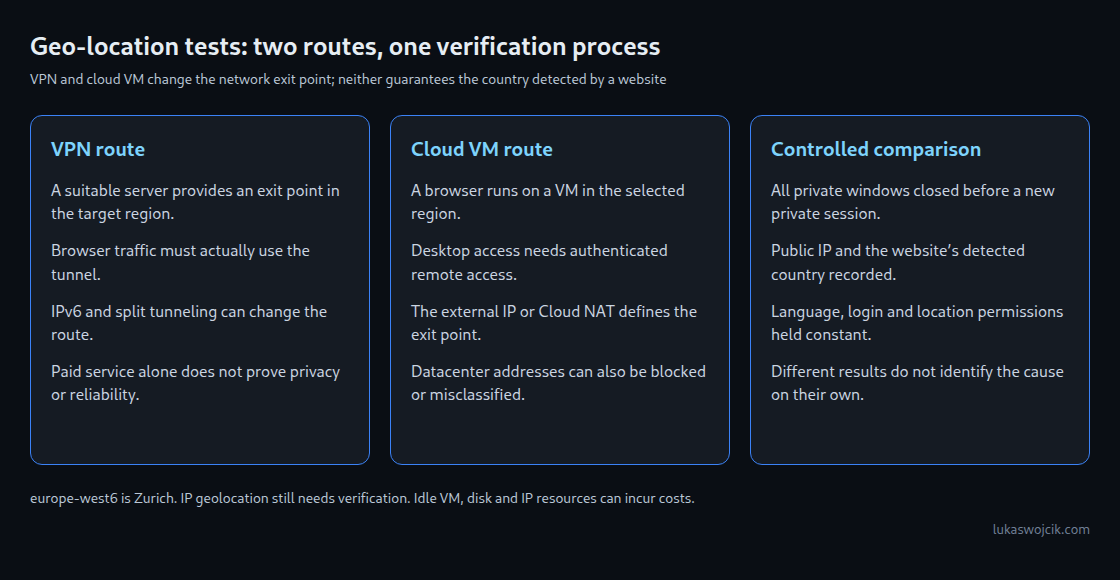
- A provider needs the required exit locations, suitable privacy terms and a dependable client. A paid plan alone does not prove safety, and a free plan alone does not prove abuse.
- The VPN connects before the test begins. The public IP observed by the target application must then be checked, including IPv6 if available. Split tunnelling can leave some traffic outside the tunnel.
- A fresh browser profile or genuinely new private session avoids reusing ordinary site state. In Chrome, all existing Incognito windows must close before a new Incognito session starts. A second private window in the same session is not an independent clean test.
Method 2: a browser on a cloud VM
A Compute Engine VM in a chosen region can run a browser through Chrome Remote Desktop. For example, europe-west6 is the Zurich region. Region selection does not guarantee that every external IP database will classify the outgoing address as Swiss.
The supported setup needs a compatible Linux desktop, browser, Remote Desktop host, authenticated remote access and an internet route, such as an external IP or Cloud NAT. The browser must actually run inside the remote session. Opening the website in the local browser still tests the local connection.
Datacenter addresses can also be blocked or challenged. A VM is therefore another measurement point, not an unblockable substitute for a residential connection. Running VMs, disks, networking and retained resources may incur costs; the test plan should include cleanup.
Record evidence, not just the banner
For each run, the useful record includes time, target URL, observed public IP, country reported by the actual site or edge service, language, time zone, login state and saved consent state. The resulting page or network response then shows whether the expected rule ran.
A discrepancy between VPN and VM can have several causes: different geolocation databases, stale browser state, a proxy route, bot protection or a different application configuration. It does not by itself prove that the rule uses more than a country code. A regional page test also does not establish legal compliance of the entire consent implementation.
Questions and answers
Is Incognito enough for every test?
No. A new session separates much browser storage but leaves the network route unchanged. Signing in can restore server-side preferences, and private-mode cookie restrictions can themselves change behavior. A controlled ordinary profile can be useful as a comparison.
Does a remote browser reproduce a visitor’s precise location?
No. Browser geolocation is a separate permission-based mechanism and can behave differently on a VM. A remote session is useful for IP-based checks, but GPS- or device-dependent behavior needs its own test.
How should an unexpected country be investigated?
The address and country detected by the system that makes the decision are the starting point. A separate IP-check website may use another database and therefore cannot conclusively explain the target site’s decision.
Related articles