English
 Deutsch
 Polski
Tutorial: Configuring Geolocation Rules in Usercentrics

Contents
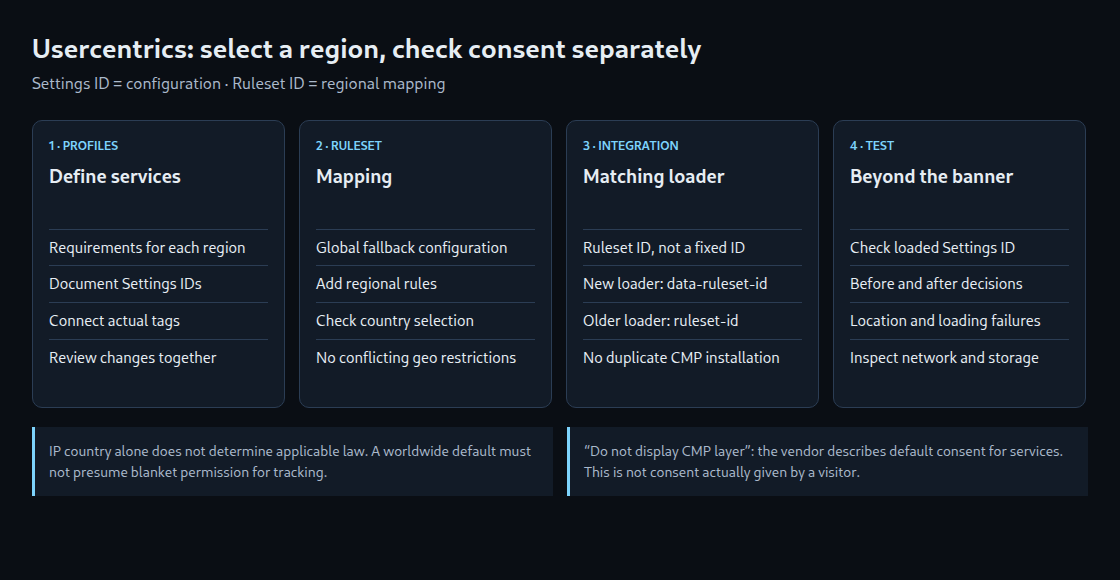
Geolocation rules select a Usercentrics configuration using an IP-based location estimate. Settings IDs identify individual configurations; a Ruleset ID identifies their regional mapping. This technical selection does not determine which privacy rules apply to the actual processing.
A blanket profile of “outside the EU/EEA means no consent” is unsuitable. Other regions also impose privacy obligations, and GDPR applicability does not depend solely on the detected IP country. The starting point is a documented decision for each processing activity and region, rather than a desired banner rate.
1. Define configurations and responsibilities
Different regional behaviour requires the relevant configurations with their own Settings IDs. Uniform worldwide behaviour does not necessarily require two profiles. A concise mapping records the region, Settings ID, services, consent requirements and responsible approval.
Services that require consent remain blocked before consent is given. Strictly necessary functions need separate assessment. The CMP must be connected to the actual scripts and tags; listing a service in the banner does not automatically block every existing integration.
2. Set a global default and regional rules
A ruleset is created under Geolocation Rulesets. Its Global Configuration defines the default; regional rules connect selected areas to other Settings IDs. Included configurations must not impose conflicting additional geographic restrictions.
The country selection needs explicit review: the EU bundle, for example, includes neither the United Kingdom nor Switzerland. The label “Rest of World” alone cannot establish a common legal treatment for multiple jurisdictions.
“Do not display CMP layer” is not merely a visual option. The vendor states that the CMP continues running in the background with all services consented by default. That effect belongs in approval and testing. An automatic product default is not consent actually given by a visitor.
3. Use the matching implementation script
The Ruleset ID controls regional selection. The documented newer loader uses data-ruleset-id. Leaving a fixed data-settings-id in place instead loads the individual configuration.
<script id="usercentrics-cmp"
  data-ruleset-id="RULESET_ID_PLACEHOLDER"
  src="https://web.cmp.usercentrics.eu/ui/loader.js"></script>
The script belongs in the document head before services requiring consent. The example applies to the specified loader and contains a placeholder ID. The older Browser UI documentation for app.usercentrics.eu/browser-ui/latest/loader.js uses ruleset-id instead. Loader and attribute must match. The implementation instructions for the CMP version in use take precedence. A second parallel CMP installation should be avoided.
4. Check selection and actual data flows
A VPN or an external test location can exercise IP-based selection. A VPN is not the only testing option: the Browser SDK also documents userCountryData for simulation in test integrations. Simulation does not replace testing production IP detection.
- Fresh visit: Use a new browser profile or clear all site data. Clearing only the HTTP cache does not remove stored consent.
- Region: Record expected and loaded configurations for each intended area; also check an area without a matching rule.
- Decision: Inspect network requests, cookies and storage access before selection, after rejection, after approval and after subsequent withdrawal.
- Failure: Test missing location data and loading failures separately. Consent-dependent tags must not start independently while consent remains unresolved.
- Return visit: Check a subsequent visit with a stored choice and a change of test region.
The visible banner alone proves neither the correct Settings ID nor effective blocking. The loaded CMP configuration in the network log can be compared with the mapping. Account-specific menus and available features may differ from the documentation version described here.
Questions and answers
How can multiple profiles remain consistent?
A common service inventory and documented regional differences form the reference. Every change to services, tags or legal bases triggers a comparison of all affected configurations. Periodic checks supplement that process; quarterly comparison alone would leave new errors in place until the next review.
What happens without a matching regional rule?
The ruleset’s global configuration is the documented fallback. This differs from embedding a fixed Settings ID without a ruleset. A failed CMP request is a separate failure case and does not prove that the global default loaded successfully. The integration needs tested initial blocking of consent-dependent tags.
Does an unexpected banner prove a geolocation error?
No. Possible causes include IP classification, rules, the embedded ID, configuration version and stored decisions. A CDN country code is another observation, not proof of physical location. Diagnosis therefore compares detected region, loaded configuration and actual tag behaviour during the same test.
Sources
Related articles