English
 Deutsch
 Polski
Tutorial: Migrating E-Commerce Analytics from Client-Side to Server-Side GTM

Management Summary
Server-side measurement places a shop-controlled service between the browser and analytics providers. It can give more control over how purchase information is processed and shared. Forwarding browser messages is different from sending confirmed purchases directly from the order system, so the two approaches have different requirements. The article explains this distinction and a gradual transition. The aim is more dependable sales reporting, where missing and repeated orders matter more than simply reporting a higher total.
Contents
- 1. Comparison criteria
- 2. The complete server environment
- 3. Receiving client and outgoing tag
- 4. Routing the existing web installation
- 5. Backend purchases as a separate integration
- 6. Reconciliation and cutover
- Questions and answers
- Sources
- Practical check: reconcile orders with the shop export
- Preparing the Analytics CSV from BigQuery
Server-side GTM provides control over the processing and destinations of measurement requests. Routing browser events through a tagging server and sending confirmed purchases from the shop backend are separate changes. Neither guarantees complete analytics: consent, missing identifiers, duplicate events, failed delivery and reporting definitions still matter.
Update — 19.10.2026: The endpoint examples now distinguish standalone gtag.js, GTM and optimized destination tags. Container optimization does not itself migrate measurement to a tagging server; the actual request URL remains the decisive check. The October changes to Google tag and GTM.
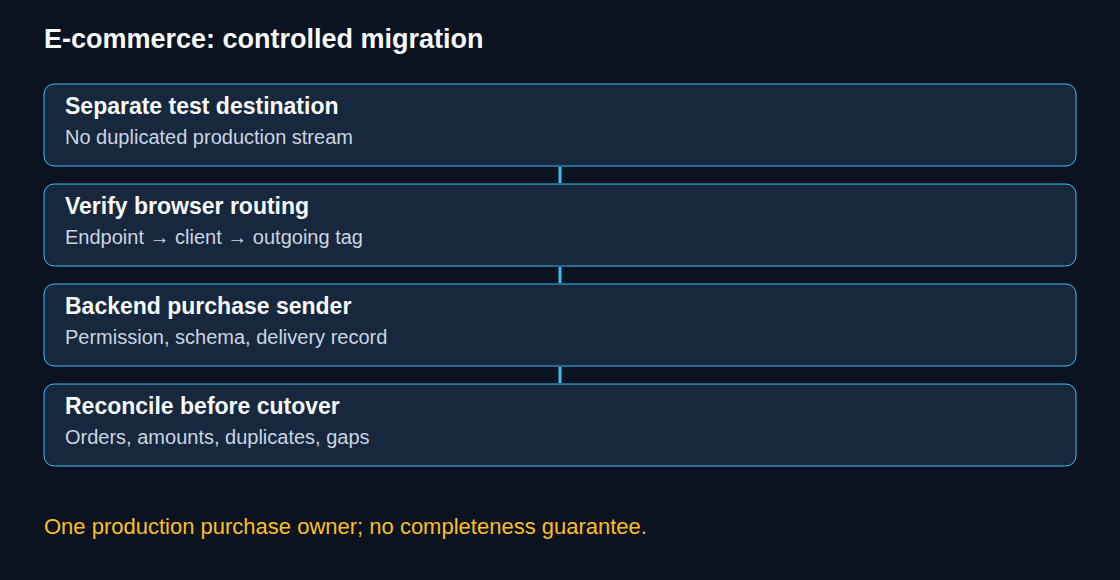
The migration starts with a separate test destination, preserves a rollback path and uses order-level reconciliation before production cutover.
1. Comparison criteria
The existing production route remains active while the new route sends to a separate test property. Sending both copies into the same production property can inflate events and revenue; a matching transaction ID is not a general deduplication mechanism for every event or destination.
The test property needs comparable timezone, currency, event definitions, filters and relevant links. Two to four weeks can be a useful initial observation period, but the required duration depends on purchase cycles, traffic and delayed payments. Acceptance criteria should cover missing and duplicated orders, amounts, consent behavior and failed requests, not merely a higher purchase total.
2. The complete server environment
GTM offers automatic Cloud Run provisioning. A manual deployment needs both a preview server and a production tagging service. Both use the same container configuration; the preview service uses RUN_AS_PREVIEW_SERVER=true, and the tagging service receives its HTTPS address through PREVIEW_SERVER_URL. Google’s manual setup guide contains the complete deployment sequence. A single tagging-service command would omit the preview infrastructure.
Other compatible Docker environments are possible, but networking, credentials, scaling, health checks and image updates remain operational responsibilities. Capacity must be tested against actual traffic. Publishing a GTM workspace updates container configuration; it does not replace the runtime image.
A same-site subdomain or same-origin route can provide first-party context. A generated cloud hostname can still receive events but is not first-party to the shop. DNS, TLS, CSP and the actual request route need verification. A custom hostname does not make browser blocking or cookie limits disappear.
3. Receiving client and outgoing tag
A client must claim the incoming request and turn the supported payload into event data. The preinstalled Google Analytics client handles the supported Google tag format. Other protocols require an appropriate client. A receiving client alone does not deliver data to GA4: a server-side destination tag and its trigger must also be configured.
Client activation settings, Google-script serving and the browser’s destination are different controls. The browser must explicitly route measurement requests to the server. Consent settings and transformations must survive the entire path; browser-only variables do not automatically exist in the server container.
4. Routing the existing web installation
In GTM, server_container_url belongs to the Google tag or Google Analytics destination tag according to the installed configuration. In an existing standalone gtag.js setup, the equivalent setting is part of the existing configuration command:
gtag('config', 'G-XXXXXXXXXX', {
  server_container_url: 'https://sgtm.shop.example.com'
});
The measurement ID and endpoint are placeholders. This fragment neither installs gtag.js nor configures GTM. Adding a second configuration call can alter page-view behavior; the existing setup and its page-view policy should be updated deliberately.
A browser network check confirms the actual endpoint. Server preview then checks the claiming client, event data, consent state, transformations and outgoing tag. Finally, the test destination confirms receipt. A successful response at the tagging server alone does not prove that GA4 processed the event.
5. Backend purchases as a separate integration
A backend event can be triggered by a confirmed order without waiting for the confirmation page to render. The analytics integration still needs permitted collection, valid data and reliable delivery. A longer-lived identifier does not itself extend a GA4 session.
The backend sender should use a documented interface. Direct GA4 Measurement Protocol uses HTTPS POST to /mp/collect, a web-stream measurement ID and private API secret in the URL, and a JSON body with client_id and events. This direct route bypasses the tagging container. Routing a backend payload through sGTM instead requires a deliberately configured receiving client, supported payload format, authentication strategy and destination mapping. Replacing the hostname of a JSON Measurement Protocol request is not enough to prove compatibility with the built-in client.
For matching an online visit, permitted client and session identifiers should come from the actual measurement context, not from an assumed cookie string layout. Missing identifiers require an explicit policy; fabricating a matching session would produce misleading attribution. For direct Measurement Protocol session attribution, Google’s documented time and session constraints also apply, including a request within 24 hours of session start and an event timestamp within that session.
- The purchase trigger is explicitly defined: for example a confirmed paid order, not every order-status update.
- A durable delivery record stores a unique order/event key, occurrence time, currency, item data and the applicable consent context.
- Purchase data is validated; value and item amounts must use the agreed tax, shipping and discount definition.
- Current permission is checked before sending, including later withdrawal where applicable. Backend sending is not a substitute for consent handling.
- Delivery outcomes are recorded; failures are handled through a bounded queue and explicit retry policy. A timeout means no response arrived in time. The recipient may still have received the event, so a retry needs protection against counting it twice.
Each order needs a stable, nonempty transaction_id. GA4 documents purchase deduplication for web streams; this is not a universal exactly-once guarantee across app streams, advertising destinations or custom exports. After cutover, one component should own the production purchase event. A browser and backend overlap belongs in the isolated test design.
For direct Measurement Protocol, validation at /debug/mp/collect checks payload structure without adding events to reports. A production 2xx response confirms HTTP receipt, not successful analytics processing. Secrets belong on the server and should be excluded from logs and browser code.
6. Reconciliation and cutover
Comparison starts with the same eligible order population, date boundaries, currencies and revenue definition. Excluded consent states, delayed payments and refunds require separate explanations. Higher counts alone are not evidence of better data. The tools below support order-level checks.
Cutover changes one production route at a time, disables the redundant production purchase sender and monitors delivery errors, duplicates, attribution and costs. The previous configuration remains available for rollback, with a plan to avoid replaying already delivered purchases.
Questions and answers
Is the shop’s own subdomain enough to stop Safari from shortening the cookie set by the server container?
No. An own subdomain alone guarantees neither full cookie lifetime nor exemption from tracking prevention. WebKit caps response-cookie expiry for detected third-party CNAME or IP-address cloaking. A route through the site’s infrastructure can change the applicable conditions, but it does not establish an unconditional lifetime guarantee. Verification needs the actual DNS and request path, Set-Cookie attributes and the browser’s policy; GTM container optimization changes none of those automatically.
Sources
- Google Tag Manager: Server-side tagging
- Google Tag Manager documentation
- Google Analytics: Ecommerce events
- Google Tag Manager: release notes, 8 and 12 October 2026
- Google tag and Tag Manager: unified configuration
- Google tag: supported installation methods
- Google tag in Tag Manager: setup and initialization
- Server-side Tag Manager: send data
- WebKit: Tracking Prevention
- Google Tag Manager: Manual server-side setup
- Google Analytics: Send Measurement Protocol events
- Google Analytics: Measurement Protocol reference
- Google Analytics: Measurement Protocol use cases
- Google Analytics: Validate Measurement Protocol events
- Google Analytics: Minimize duplicate key events with transaction IDs
- Google Tag Manager: Implement consent mode with server-side tagging
Practical check: reconcile orders with the shop export
The Shop vs. GA4 Revenue Reconciliation tool compares two CSV files locally. The order ID is the join key. Customer names, email addresses and contact details are unnecessary for this comparison: an order ID, amount and currency are enough.
- Both exports use the same period and timezone, with the same treatment of tax, shipping and refunds. Line items and refunds are combined into one agreed amount per order before comparison.
- Each file is loaded with its separator and decimal mark. The order ID, amount and currency columns are mapped to the comparison fields. Identifiers with leading zeros remain text.
- Decimal precision and an explicit per-order tolerance are selected. Currency conversion is not performed.
- The review covers the separate groups: missing on either side, duplicate ID, different currency and amount outside tolerance.
- The result can be exported for investigation of individual orders in the source systems.
Duplicate IDs are flagged rather than added together: a repeated purchase event, an item-level export and a refund row require different interpretations. Negative amounts are accepted only as numbers; the business definition still has to agree between files. A missing Analytics order can reflect consent, timing, filtering or collection failures and is not by itself proof of a faulty tag. A zero difference also does not establish that all orders were exported. The tool never combines totals across currencies.
Definitions should follow the chosen export and the GA4 ecommerce documentation. The Data API schema distinguishes transaction IDs and revenue metrics; a generic total-revenue column is not automatically equivalent to a shop’s order amount.
Preparing the Analytics CSV from BigQuery
The export helper in the revenue reconciliation tool generates a purchase query for an existing daily GA4 export. Project, dataset, dates and rounding precision are entered locally. The page does not run the SQL or request BigQuery access.
The resulting columns transaction_id, amount and currency match the comparison fields. Each recorded purchase remains a row. An additional purchase-event count helps identify repeated transaction IDs; these are not silently summed or discarded. A missing amount is not replaced with zero.
- The purchase-amount definition and reporting-day boundaries are agreed before the shop file is created. This query excludes refunds and does not add tax or shipping separately.
- The generated SQL is validated in BigQuery and its cost estimate checked. A maximum bytes billed limit is set before execution.
- The complete results are saved as a local CSV and loaded with comma-separated fields and decimal dot, using the same precision as the query.
- Repeated IDs and missing fields are checked before amount differences are interpreted. The comparison accepts up to 20,000 data rows per file. Identifiers remain text in spreadsheet software.
Two downloadable invented CSV files provide a reproducible first test, with one case in each of the six result groups. They are independent of the SQL and use two decimals with zero tolerance.
References: GA4 export schema, query validation and cost controls, and saving query results as CSV.
Related articles