English
 Deutsch
 Polski
readme.txt, header and SVN: how WordPress.org reads a plugin

Management Summary
A plugin’s page on WordPress.org is assembled from several files rather than one description. Information in the program identifies the version and requirements, while a readme file supplies explanations and selects the published release. If these disagree, an update can show an old version or leave the description unchanged. The example explains how to keep the downloadable software, public information and images aligned, making releases easier to understand and maintain.
Contents
- The plugin header: information at the top of the PHP file
- The readme: description and selected release
- Which field appears on the page?
- SVN: three folders with different jobs
- Images and preview
- First release in one commit
- Publishing another release
- Checks before publication
- Questions and answers
- Further reading and sources
WordPress.org reads plugin information from several files. The header of the main PHP file contains the version number and required PHP version. The readme.txt supplies the directory description. One readme field also selects the release folder. Conflicting values can leave the download button showing an old version number.
This example follows the files through to the directory page. “LW Reading Time” is a sample plugin, not a verified public release. Account names, URLs, tested versions, screenshots and translations must match the actual plugin before submission.
The plugin header: information at the top of the PHP file
A header here means a comment block at the top of the main PHP file. WordPress recognises a plugin from the Plugin Name field alone, but directory approval requires more than that field. The directory importer searches for the main file directly inside the release folder. The main file and readme therefore belong directly in trunk/, not in another trunk/lw-reading-time/ folder.
<?php
/**
 * Plugin Name:       LW Reading Time
 * Plugin URI:        https://lukaswojcik.com/plugins/lw-reading-time/
 * Description:       Shows the estimated reading time above single posts.
 * Version:           1.2.0
 * Requires at least: 6.5
 * Requires PHP:      7.4
 * Author:            Lukas Wojcik
 * Author URI:        https://lukaswojcik.com/
 * License:           GPLv2 or later
 * License URI:       https://www.gnu.org/licenses/gpl-2.0.html
 * Text Domain:       lw-reading-time
 *
 * @package LW_Reading_Time
 */

if ( ! defined( 'ABSPATH' ) ) {
	exit;
}

/**
 * Prepends the estimated reading time to the content of single posts.
 *
 * @param string $content Post content.
 * @return string Filtered content.
 */
function lw_reading_time_prepend( $content ) {
	if ( ! is_singular( 'post' ) || ! in_the_loop() || ! is_main_query() ) {
		return $content;
	}

	$words = preg_split( '/\s+/u', trim( wp_strip_all_tags( $content ) ), -1, PREG_SPLIT_NO_EMPTY );
	if ( false === $words ) {
		return $content;
	}
	$minutes = max( 1, (int) ceil( count( $words ) / 200 ) );

	$label = sprintf(
		/* translators: %d: number of minutes. */
		_n( '%d minute read', '%d minutes read', $minutes, 'lw-reading-time' ),
		$minutes
	);

	return '<p class="lw-reading-time">' . esc_html( $label ) . '</p>' . $content;
}
add_filter( 'the_content', 'lw_reading_time_prepend' );
The example estimates reading time from whitespace-separated pieces of text at 200 words per minute. Non-breaking spaces count as separators too. This is an approximation, not linguistic word counting; languages without spaces between words need a different method. The label shows at least one minute. Invalid UTF-8 leaves the content unchanged.
Versionidentifies the plugin release. PHP compares versions withversion_compare():1.02counts as newer than1.1. Consistent numbering such as1.2.0avoids surprises.Requires at leastandRequires PHPdeclare minimum versions. WordPress reads these requirements from the PHP file. Matching values in the readme avoid conflicting displays.Requires Plugins, when needed, lists directory names such aswoocommerce, not PHP file paths. Dependencies declared there by directory plugins must also be published in the directory. The field does not replace checks for required functions or particular versions.Update URIis omitted for a normal directory plugin. The importer does not accept an arbitrary external update address; a recognised directory address must belong to the same plugin.Text Domainassociates translatable strings with the plugin and matches the slug, the short directory name.
The readme: description and selected release
The readme uses a simplified Markdown format. Double equals signs mark sections. The short text after the header fields appears below the plugin name. A concise description of no more than 150 characters avoids cut-off sentences.
=== LW Reading Time ===
Contributors: lukaswojcik
Tags: reading time, posts, content
Requires at least: 6.5
Tested up to: 7.1
Requires PHP: 7.4
Stable tag: 1.2.0
License: GPLv2 or later
License URI: https://www.gnu.org/licenses/gpl-2.0.html

Shows the estimated reading time above single posts, based on the word count of the post content.

== Description ==

LW Reading Time counts the words of a post and shows the estimated reading time above the content of single posts.

* No settings page, no database tables.
* The output is a single paragraph with the class `lw-reading-time`.
* Translations are managed on translate.wordpress.org.

== Installation ==

1. Install the plugin via Plugins > Add New, or upload the folder `lw-reading-time` to `/wp-content/plugins/`.
2. Activate the plugin.
3. Open any single post; the reading time appears above the content.

== Frequently Asked Questions ==

= How is the reading time calculated? =

The word count of the post content is divided by 200 and rounded up to full minutes.

= Does the plugin change pages? =

No. Only single posts of the post type `post` are changed.

== Screenshots ==

1. Reading time above a single post.
2. The same post with the Polish translation active.

== Changelog ==

= 1.2.0 =
* Plural forms for the reading time label.
* WordPress 6.5 or later is required.

= 1.1.0 =
* Output limited to the main query.

== Upgrade Notice ==

= 1.2.0 =
Adds plural forms. WordPress 6.5 or later is now required.
The sample values are illustrative. A translation on translate.wordpress.org, the listed screenshots and a test against a particular WordPress version must actually exist before publication of those claims. Contributors lists WordPress.org usernames; Tags contains up to five relevant search terms. Tested up to names the WordPress release branch actually tested, not hoped-for future compatibility.
The usual sections explain features, installation, common questions, screenshots and changes. Numbered screenshot descriptions belong to screenshot-1, screenshot-2 and so on. Older changelog entries can move to a separate file. The handbook warning about possible problems above 10 kB is not a universal hard import limit.
Which field appears on the page?
| Displayed information | Source during directory import |
|---|---|
| Plugin name | Readme title; normally the PHP header as a fallback, including when the readme title is just the slug. |
| Short description | Readme; PHP description as a fallback. |
| Version number | Version in the PHP header. |
| Minimum WordPress/PHP version | Accepted PHP header value; readme as a fallback. |
| Tested up to | Additional PHP header, if present and accepted; otherwise the readme. |
| Search tags and contributors | Readme. |
The table describes the inspected importer code. Its header version check accepts certain sequences of digits and dots at this point; an accepted string does not establish a compatibility test. The readme has separate checks, including checks for values too far in the future. These rules do not automatically apply identically to the header. The directory can also map a version entry to a corresponding published release.
SVN: three folders with different jobs
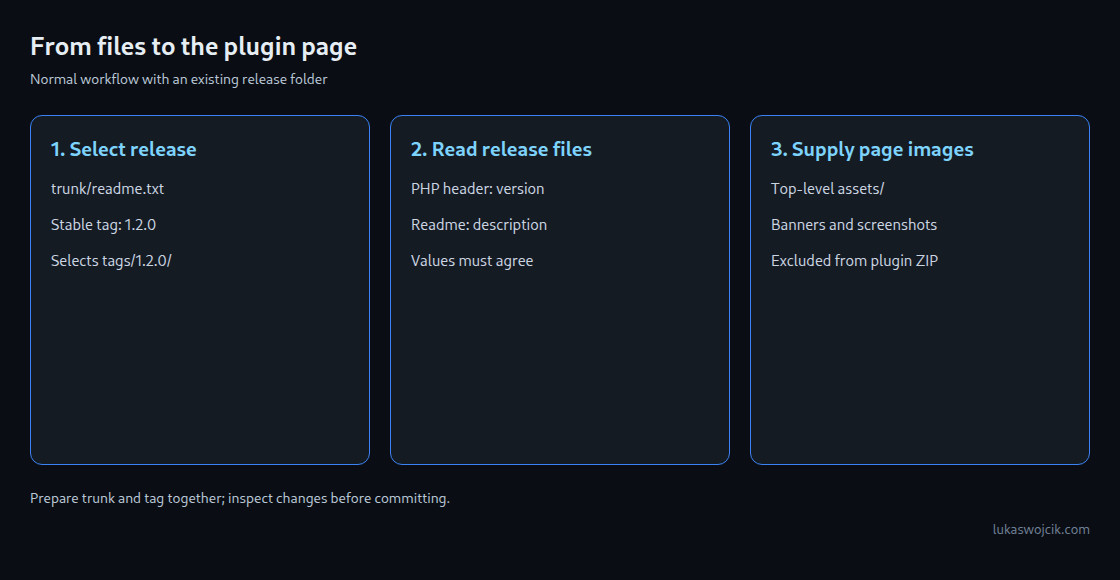
SVN is the directory’s version control system. trunk/ holds the prepared state, tags/1.2.0/ holds the files for a particular release, and the top-level assets/ folder holds directory-page images. Those images are not included in the downloadable plugin ZIP.
In the usual workflow, trunk/readme.txt contains Stable tag: 1.2.0. WordPress.org then looks for tags/1.2.0/. When that folder exists with the appropriate files, both code and description come from that release folder. A description changed only in trunk will not appear on the plugin page. The PHP version number, folder name and Stable tag values must agree.
A missing release folder is not a harmless normal state. Import can fall back to trunk; enabled release confirmation can instead stop the import. Stable tag: trunk is prohibited for new plugins. The directory rebuilds affected ZIP versions, not automatically every old version after every commit. A commit saves a set of changes together; processing and cached displays follow later.
Images and preview
The top-level assets folder uses documented filenames: for example banner-772x250.png, an additional banner-1544x500.png for high-resolution displays, icon-128x128.png, icon-256x256.png and numbered screenshots. Image dimensions must match the relevant format. Documented lowercase names avoid ambiguity; the inspected importer does not universally ignore uppercase letters.
For a Playground preview, the handbook describes assets/blueprints/blueprint.json. This JSON file contains steps for setting up a test environment in a browser. A valid file alone does not make the preview public: public preview must also be enabled in the plugin’s advanced view. Caches can delay visible image changes.
First release in one commit
The commands require an approved repository, prepared files and the necessary images. WPORG_USERNAME is a placeholder for the actual WordPress.org account name. Authentication requires the appropriate SVN credentials. The main file and readme already contain version 1.2.0.
# Run in a shell that stops on errors. Replace the approved slug and account.
set -eu

# First release: check out the repository created after approval.
svn co https://plugins.svn.wordpress.org/lw-reading-time lw-reading-time-svn
cd lw-reading-time-svn

# Main plugin file and readme.txt go directly into trunk/, not into a subfolder.
cp ../lw-reading-time/lw-reading-time.php ../lw-reading-time/readme.txt trunk/
svn add trunk/*

# Banner, icon, screenshots and blueprint go into the top-level assets/ folder.
cp ../lw-reading-time-assets/banner-772x250.png ../lw-reading-time-assets/banner-1544x500.png assets/
cp ../lw-reading-time-assets/icon-128x128.png ../lw-reading-time-assets/icon-256x256.png assets/
cp ../lw-reading-time-assets/screenshot-1.png ../lw-reading-time-assets/screenshot-2.png assets/
mkdir assets/blueprints
cp ../lw-reading-time-assets/blueprint.json assets/blueprints/
svn add assets/*

# Serve the images as images instead of application/octet-stream.
svn propset svn:mime-type image/png assets/*.png

# Prepare the tag before publishing anything. The source files already say 1.2.0.
svn cp trunk tags/1.2.0
svn status
svn diff

# One commit publishes trunk, tag and assets together. The username is case sensitive.
svn ci -m "Release LW Reading Time 1.2.0 with assets" --username WPORG_USERNAME
The release folder is prepared before the commit. Trunk, release and images are then saved together. svn status shows changed paths; svn diff shows text changes. The MIME property identifies PNG files as images. JPEG uses image/jpeg.
Publishing another release
The second example starts in the parent folder of the existing working copy. The prepared files now contain version 1.3.0. Copying replaces only two files here. Old files that are no longer needed do not disappear automatically: those paths require deliberate removal with svn delete after inspection.
# Run from the parent directory of the existing working copy.
set -eu

# Next release: bring the working copy up to date.
cd lw-reading-time-svn
svn up

# Version header and Stable tag both say 1.3.0 in the copied files.
cp ../lw-reading-time/lw-reading-time.php ../lw-reading-time/readme.txt trunk/
# This example copies two files only. Inspect obsolete tracked files separately.
# Use svn delete on each deliberately removed path before tagging.
svn add --force trunk
svn stat
svn diff

# Copy trunk to the new tag and commit trunk and tag together.
svn cp trunk tags/1.3.0
svn ci -m "Release 1.3.0"
svn cp preserves version history. Previously published release folders stay unchanged. Development files, private configuration and ZIP archives do not belong in the distributed plugin files. A .gitignore does not prevent an accidental SVN commit. The separate top-level assets folder, however, is not installed with the plugin.
Checks before publication
The readme validator checks names, fields and text structure. The tool does not check that the release folder exists, that the PHP header names the same release or that dependencies are available. Those questions concern other files or the directory import. A clean readme result is therefore not plugin approval.
For URL input, the inspected validator accepts certain hosts, including plugins.svn.wordpress.org and raw.githubusercontent.com, and appropriate readme filenames. Retrieved content must be smaller than 512 KiB; exactly 512 KiB is already rejected. This fetch limit differs from the advice to keep a readme short.
Both SVN workflows were checked in an isolated local repository: a combined first release, correct release copies, image type, an unchanged old release and a clean working copy. Eight further isolated PHP checks cover text counting and error cases. These checks replace neither a real WordPress run nor Plugin Check or WordPress.org approval. Import behaviour described here comes from source inspection; the import service was not recreated locally.
Questions and answers
Why does the description remain unchanged after a commit?
With a valid Stable tag, the directory reads the description from the corresponding release folder. A change only in trunk is insufficient. Import processing and caches can also delay the visible change.
Why does the displayed version differ from the folder name?
The displayed version number comes from the PHP header. A new folder name does not change that field. Header, readme and release folder must identify the same release.
Why can Tested up to differ between the readme and the page?
An accepted header value can override the readme. The directory can also map the entered release branch to a corresponding published version. The display does not prove any additional plugin test.
Further reading and sources
- Review and directory rules
- Plugin Check
- Translations
- Playground and blueprints
- Plugin Handbook: readme.txt format
- Plugin Handbook: Header Requirements
- Plugin Handbook: Using Subversion
- Plugin Handbook: plugin assets
- Plugin Handbook: Previews and Blueprints
- WordPress.org: Readme Validator
- WordPress.org: sample readme.txt
- GitHub WordPress/wordpress.org: readme parser (class-parser.php)
- GitHub WordPress/wordpress.org: readme validator (class-validator.php)
- GitHub WordPress/wordpress.org: plugin importer (class-import.php)
- GitHub WordPress/wordpress-develop: validate_plugin_requirements() in plugin.php
- GitHub WordPress/wordpress-develop: upgrade notice in update-core.php
- Make WordPress Core: Introducing Plugin Dependencies in WordPress 6.5
- WordPress.org: Plugin Check (PCP), plugin page and changelog
- WordPress.org API: core version check
Related articles