English
 Deutsch
 Polski
Raspberry Pi as a Hardened WireGuard VPN Gateway with Split-Tunneling
Part 6 of 6 in the series Homelab on the Raspberry Pi

Contents
Architectural Overview: WireGuard Kernel Routing and Split-Tunneling
Traditional VPN protocols such as OpenVPN or IPsec rely on userspace context switching and complex cryptographic handshakes, which introduce substantial CPU overhead and latency on single-board ARM computers like the Raspberry Pi. WireGuard, by contrast, operates directly inside the Linux kernel space using state-of-the-art cryptography (ChaCha20, Poly1305, Curve25519), enabling throughput exceeding 800 Mbps on Gigabit Ethernet interfaces with minimal CPU load.
In a Split-Tunneling architecture, the Raspberry Pi functions as a hardened security gateway. Rather than routing all client internet traffic through the home network—which bottlenecks mobile data speeds—the tunnel selectively routes only specific destination subnets (e.g., local home lab resources under 192.168.10.0/24) through the encrypted WireGuard interface. Conversely, the gateway can also be configured to encrypt specific local LAN devices through an external privacy VPN provider while leaving general LAN traffic unaffected.
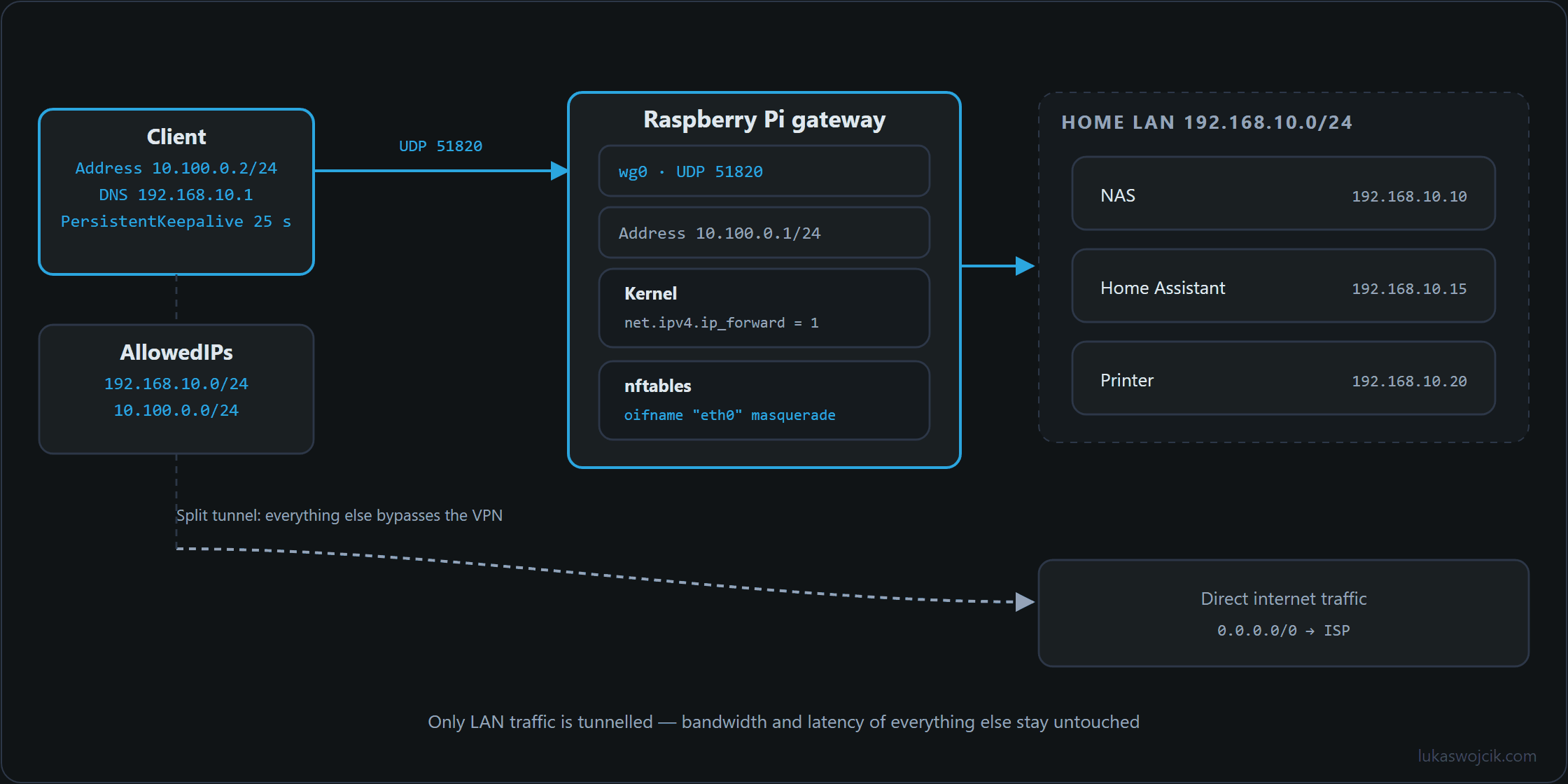
AllowedIPs travel through wg0. The gateway forwards them at kernel level and masquerades them onto eth0; all other traffic leaves the client directly.Step-by-Step Implementation Guide
Step 1: Enabling Linux Kernel IP Forwarding
To permit packet forwarding between the physical network interface (eth0) and the virtual WireGuard interface (wg0), IPv4 and IPv6 packet forwarding must be enabled permanently in the Linux kernel hierarchy:
# /etc/sysctl.d/99-wireguard-forwarding.conf
net.ipv4.ip_forward = 1
net.ipv6.conf.all.forwarding = 1
net.ipv4.conf.all.rp_filter = 1
net.ipv4.conf.default.rp_filter = 1
Apply the modified kernel parameters immediately without restarting the host:
sysctl --systemStep 2: Cryptographic Key Generation and Package Installation
Install the WireGuard kernel tools and generate public/private key pairs with restricted filesystem permissions:
apt update && apt install -y wireguard wireguard-tools nftables
mkdir -p /etc/wireguard && cd /etc/wireguard
chmod 700 /etc/wireguard
wg genkey | tee server_private.key | wg pubkey > server_public.key
chmod 600 server_private.key
Step 3: Configuring the Hardened Server Interface (wg0.conf)
The core configuration file defines the server listening port, subnet allocation, and integrated firewall routing rules. WireGuard’s default UDP port (51820) is configured alongside strict `nftables` masquerading rules:
# /etc/wireguard/wg0.conf
[Interface]
Address = 10.100.0.1/24
ListenPort = 51820
PrivateKey = <SERVER_PRIVATE_KEY>

# Automated firewall masquerading via nftables
PostUp = nft add table ip wireguard; nft add chain ip wireguard nat { type nat hook postrouting priority 100\; policy accept\; }; nft add rule ip wireguard nat oifname "eth0" masquerade
PostDown = nft delete table ip wireguard

# Example Split-Tunnel Client Peer Configuration
[Peer]
PublicKey = <CLIENT_PUBLIC_KEY>
AllowedIPs = 10.100.0.2/32
Step 4: Client Split-Tunnel Routing Configuration
On the remote client device, the AllowedIPs directive controls whether the connection functions as a full tunnel or a split tunnel. Setting AllowedIPs = 192.168.10.0/24, 10.100.0.0/24 forces only home network packets through the encrypted tunnel, while public web browsing continues directly over the client’s local internet connection:
# Client-Side Configuration (Split-Tunneling Mode)
[Interface]
PrivateKey = <CLIENT_PRIVATE_KEY>
Address = 10.100.0.2/24
DNS = 192.168.10.1

[Peer]
PublicKey = <SERVER_PUBLIC_KEY>
Endpoint = vpn.lukaswojcik.com:51820
AllowedIPs = 192.168.10.0/24, 10.100.0.0/24
PersistentKeepalive = 25
Step 5: Quality Assurance and Throughput Validation
After starting the systemd service via systemctl enable --now wg-quick@wg0, verification must be conducted across three diagnostic vectors:
- Handshake and Key Exchange Audit: Execute
wg show wg0on the Raspberry Pi terminal to verify that active peers display recent cryptographic handshake timestamps and bidirectional transfer statistics. - Routing Table Verification: Inspect client routing tables (e.g.,
ip route show) to confirm that the default gateway remains unchanged while static routes for192.168.10.0/24point strictly to thewg0interface. - Bandwidth and Latency Benchmark: Perform an internal
iperf3throughput test between the remote client and an internal home lab server to ensure transmission speeds achieve network saturation without packet fragmentation.
Summary and Measurable Added Value
What is achieved: Implementation of a hardened, kernel-space WireGuard VPN gateway on Raspberry Pi hardware configured with selective split-tunneling and automated firewall masquerading.
Resulting added value:
- Zero-Latency Remote Access: Internal home laboratory services, dashboards, and storage nodes become securely accessible from external networks without exposing internal ports to the public internet.
- Optimized Bandwidth Consumption: Split-tunneling prevents unnecessary routing of external streaming or web traffic through home upload connections, maintaining maximum client download speeds.
- Minimal Hardware Footprint: Kernel-level execution requires markedly less CPU time per transferred gigabyte than userspace protocols such as OpenVPN, leaving noticeably more system resources available for containerized services.
Questions and answers
Does a UDP port other than 51820 make the gateway less visible to scans?
Hardly. WireGuard does not answer any packet that lacks a valid handshake with a known key, so a port scan cannot distinguish the port from a filtered one, whatever its number. The hardening lies in the silence of the protocol, not in the port number, and 51820 is WireGuard’s usual default port anyway.
Can a client bypass the split tunnel and send all of its traffic through the home network?
Yes, because split tunneling is a decision made by the client. AllowedIPs on the client only determines which destinations it sends into the tunnel. If it enters 0.0.0.0/0 there, all its traffic goes to the Raspberry Pi, and the Pi forwards it: forwarding is enabled, and the masquerading rule applies to everything leaving eth0, including the path to the internet.
On the gateway, the configuration only restricts the source address: AllowedIPs = 10.100.0.2/32 in the server file means that only packets with this source address are accepted from this peer. The line says nothing about destinations.
If the gateway is to enforce the split tunnel, a filter chain on the forward hook is needed: allowing traffic from wg0 to the home network 192.168.10.0/24 and replies to established connections, and dropping everything else coming from wg0. A table of the inet family covers IPv4 and IPv6 in a single chain.
What happens to name resolution on the client when the tunnel fails?
It fails along with it. With DNS = 192.168.10.1, the client asks a server on the home network, and that address lies within AllowedIPs. Every lookup therefore runs through the tunnel, including those for websites whose traffic otherwise goes straight to the internet. If the gateway cannot be reached, general traffic still flows directly, but names no longer resolve, and to the person using the device that looks like a complete outage.
A second constraint concerns the network the client is currently on. If a hotel or guest network itself uses 192.168.10.0/24, two routes compete for the same addresses, and depending on the routing the client loses access to either the home network or the local gateway. A less common subnet for the home network lowers this risk.
Homelab on the Raspberry Pi
- Raspberry Pi 4 and 5: Booting From an SSD by Changing the Bootloader
- Uninterruptible Power Supply (UPS) for Raspberry Pi 4 and 5: Top 5 Solutions for High-Load Setups
- Local CI/CD for Raspberry Pi: Automating Docker Compose Deployments
- Autonomous Docker-Compose Home Server with Traefik, SSL, and Watchtower
- Zero-Latency Local Media Server: Jellyfin on Raspberry Pi 5 with Hardware Acceleration
- Raspberry Pi as a Hardened WireGuard VPN Gateway with Split-Tunneling
Related articles