

Geo-Location Testing: Viewing a Website From Another Country via VPN or Cloud VM

Modern websites frequently alter their behavior based on the visitor’s location. From displaying strict GDPR consent banners in Europe to showing localized pricing or completely different content, Geo-Location rules are a fundamental part of web development. Testing these rules accurately, however, can be tricky. Here is how to efficiently test website localization from anywhere in the world.
Method 1: Using a Virtual Private Network (VPN)
A VPN is the most common and user-friendly way to test geo-targeted content. It routes internet traffic through a server in a chosen country, temporarily masking the original IP address.
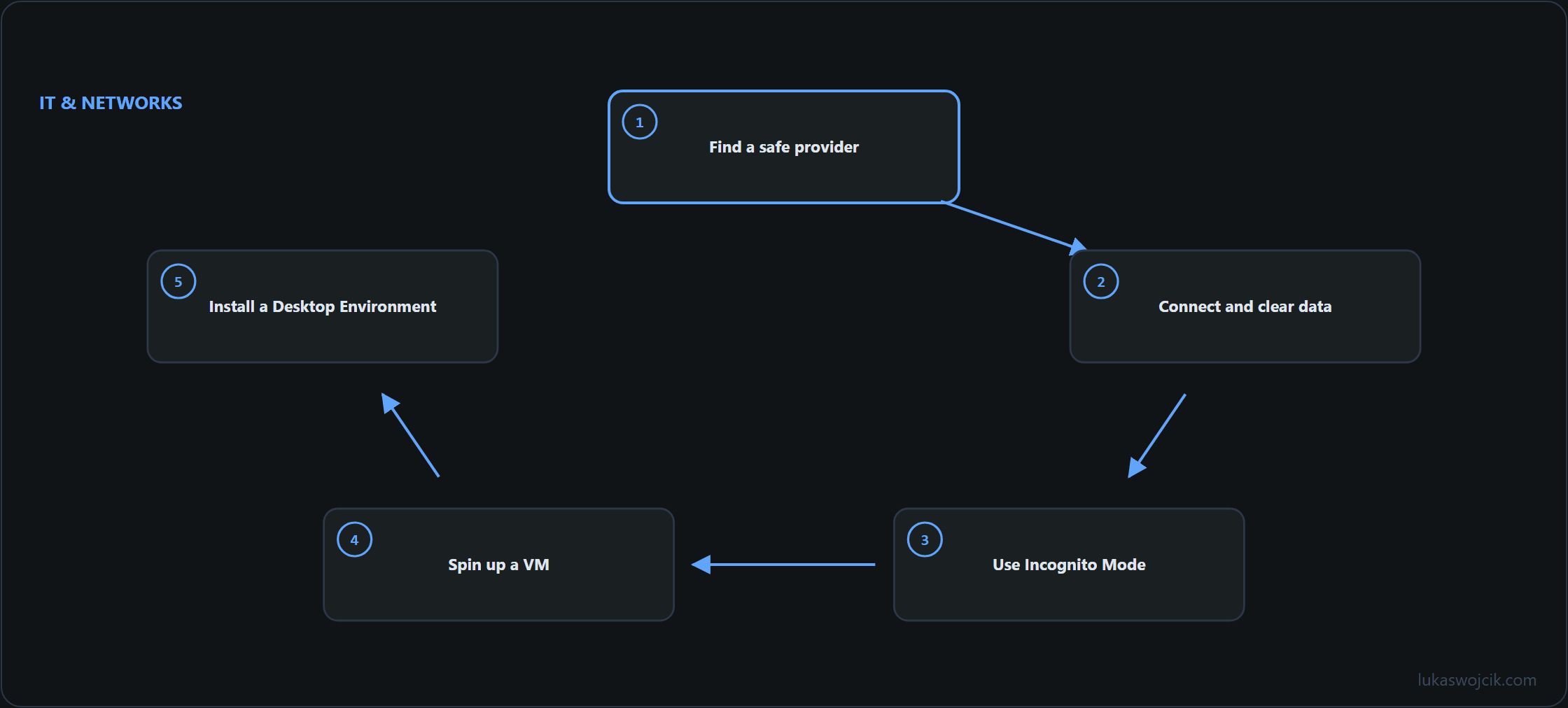
How to use a VPN effectively:
- Find a safe provider: Avoid free VPN services, as they often log data, inject ads, or have heavily blacklisted IP addresses. Opt for reputable, premium providers (such as NordVPN, ExpressVPN, or ProtonVPN) that offer a strict no-logs policy and a vast network of global servers.
- Connect and clear data: Open the VPN client and connect to a server in the target country.
- Use Incognito Mode: Before loading the website, always open a fresh Private/Incognito browsing window. This ensures that old cookies or cached location data do not interfere with the test.
Method 2: The Google Cloud Virtual Machine (VM) Alternative
Sometimes, websites or consent management platforms use advanced firewalls (like Cloudflare) that detect and block known VPN IP addresses. In these cases, a flawless alternative is setting up a Virtual Machine in the cloud.
How to set up a Cloud VM test environment:
- Spin up a VM: Log into Google Cloud Platform (GCP) and create a new Compute Engine VM instance. Select the specific region to test from. For example, selecting
europe-west6will give the machine a Swiss IP address. - Install a Desktop Environment: Install a lightweight desktop environment on the Linux VM (like XFCE) and a web browser (like Google Chrome).
- Use Chrome Remote Desktop: Install the Chrome Remote Desktop host on the VM.
- Connect: Navigate to
remotedesktop.google.comon a local machine to remote into the Google Cloud VM. By opening a browser inside this remote desktop session, the website is accessed from a clean, datacenter IP physically located in the target country, bypassing almost all anti-VPN restrictions.
Summary
Testing geo-location rules is critical for ensuring compliance and delivering the right user experience. While a premium VPN is the fastest and easiest method for daily testing, spinning up a Google Cloud VM with Chrome Remote Desktop provides a bulletproof, unblockable environment with a pristine regional IP address.
Related articles




2 comments
The cloud VM route is the part I had not considered — a datacentre address in the target country gets through where a consumer VPN endpoint is refused outright.
On the simpler method: the article insists on a private window. Is that sufficient on its own, or do consent platforms also key on something a private window does not clear?
A private window covers cookies and local storage together, since both are scoped to that session — as a reset it is sufficient for what a consent platform stores in the browser.
What it does not cover is the network layer, and that is where geo tests usually go wrong. DNS answers and cached responses survive it, so a site loaded before the VPN was connected can still be answered from a cache that was filled at the previous location. The private window is clean; the answer it receives is not.
Hence the sequence that avoids the whole class of confusion: connect first, then open the private window, then load the site — never the other way around. And where a result still looks wrong, the reliable check is not the banner but the field the platform reports for the detected country. The banner is an outcome; the field is the input that produced it.